Manage Quick Links
Build and maintain your team's shared reference library — government portals, firm SOPs, knowledge bases, and any regularly-used resource — all accessible to every team member from My Quick Links.
What is Manage Quick Links?
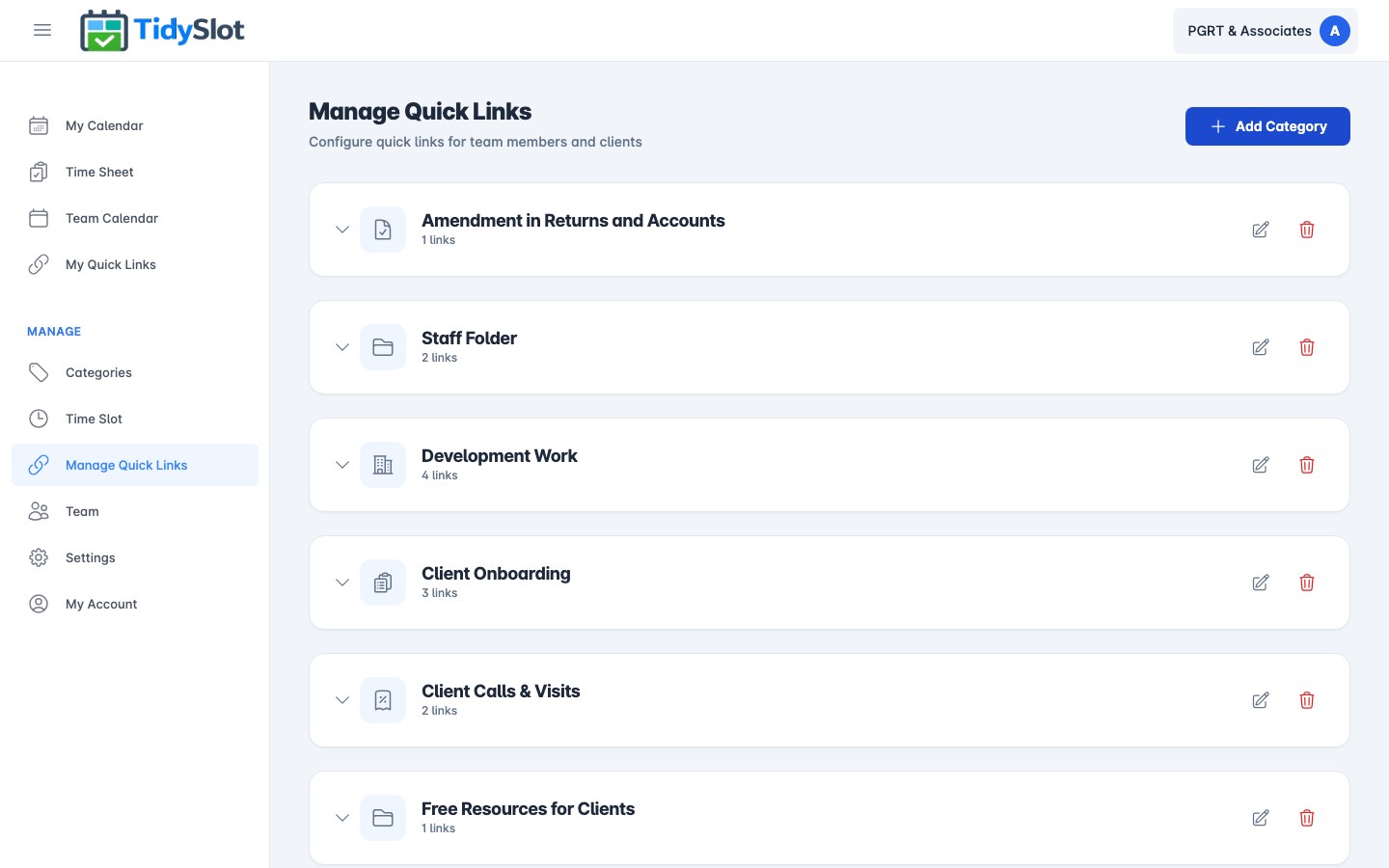
Manage Quick Links is where admins build and curate the organisation's shared reference library. Links you add here appear in team members’ My Quick Links page. You can set each group or link to be visible to all team members (org-wide) or to specific team members only.
Think of it as a shared bookmark folder for the whole firm — instead of each person maintaining their own browser bookmarks or forwarding links over WhatsApp, one admin maintains a single organised library that everyone can access. Examples: client portals, internal SOPs, team tools, shared templates, or any website your team visits regularly.
Quick Links are general reference links for the whole team. They are different from the per-job URL in Time Blocker, which is a client-specific tool link that opens for a specific job.
Key Features
- Add any URL — add links to government portals, Google Sheets, firm SOPs, dashboards, or any site your team visits regularly.
- Custom link titles and descriptions — give each link a clear, readable name and an optional description so team members know what to expect before clicking.
- Group by category — organise links into category groups (e.g. "Client Onboarding", "Learning & Updates", "Free Resources"). Categories appear as accordion sections in My Quick Links.
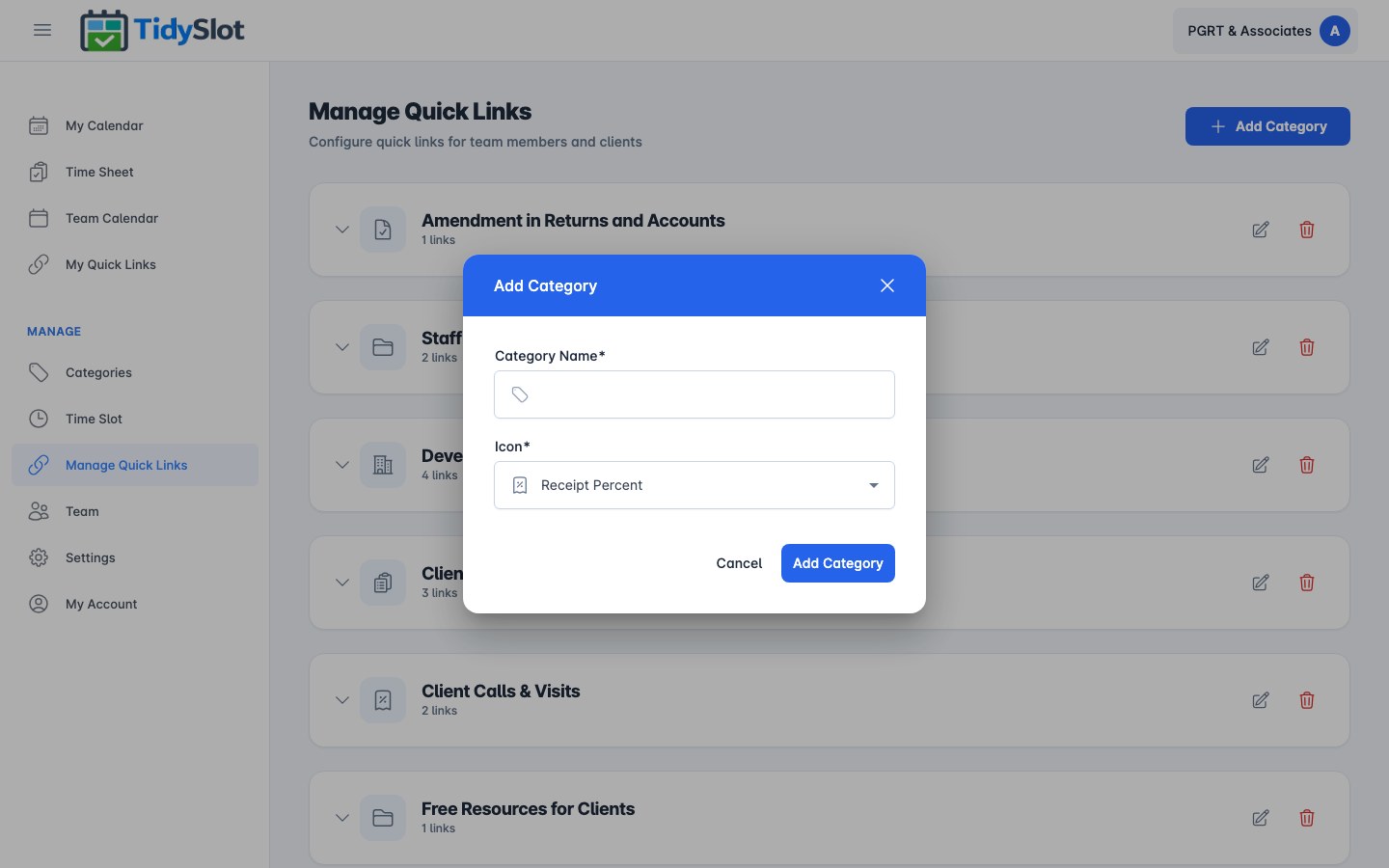
- Add and delete link categories — create and remove category groups to keep the library organised as it grows.
- Edit and delete individual links — update titles, URLs, or remove links no longer in use.
How to Add a Quick Link
-
1Go to Manage Quick Links in the sidebar
Click "Manage Quick Links" in the left navigation (visible to admins only).
-
2Click "Add Link" or the "+" button
Find the button to add a new link at the top of the page.
-
3Enter the link title
Give the link a clear name that your team will recognise — e.g. "GST Portal", "TRACES Login", "MCA21", "Client Onboarding Checklist", "Leave Handover Process".
-
4Paste the URL
Copy the full URL (including https://) and paste it into the URL field.
-
5Assign a category (optional)
Group the link under a category like "Internal Tools" or "Customer Sites" so it's easier to find in the Quick Links page.
-
6Save the link
Click Save. The link is immediately available in all team members' My Quick Links pages.
Editing or deleting a link
- Find the link in the list and click the Edit button to update its title, URL, or category.
- Click the Delete button to remove a link. It will immediately disappear from all team members' Quick Links pages.
Tips & Notes
https://.
Frequently Asked Questions
Can I add a link that requires a login?
Yes — the link will open in a new browser tab and the team member will log into that site normally. TidySlot only stores the URL; it does not store credentials for external sites.
Can I limit certain links to specific team members?
Currently, all Quick Links are visible to all team members. Team-member-specific links are not supported in this version. All links are shown to everyone in the organisation.
Is there a limit to how many links I can add?
There is no hard limit. For usability, keep the library to the most relevant links so team members can find what they need quickly without scrolling through a long list.
How do I organise links into groups?
First add a category (group) — click "Add Category" and give it a name like "Government Portals" or "Client Onboarding". Then add links inside that category. The category will appear as a collapsible group in My Quick Links.