My Quick Links
Your team's shared reference library — government portals, standard operating procedures, internal knowledge bases, and any URL your whole team needs to access regularly. One click, always in reach.
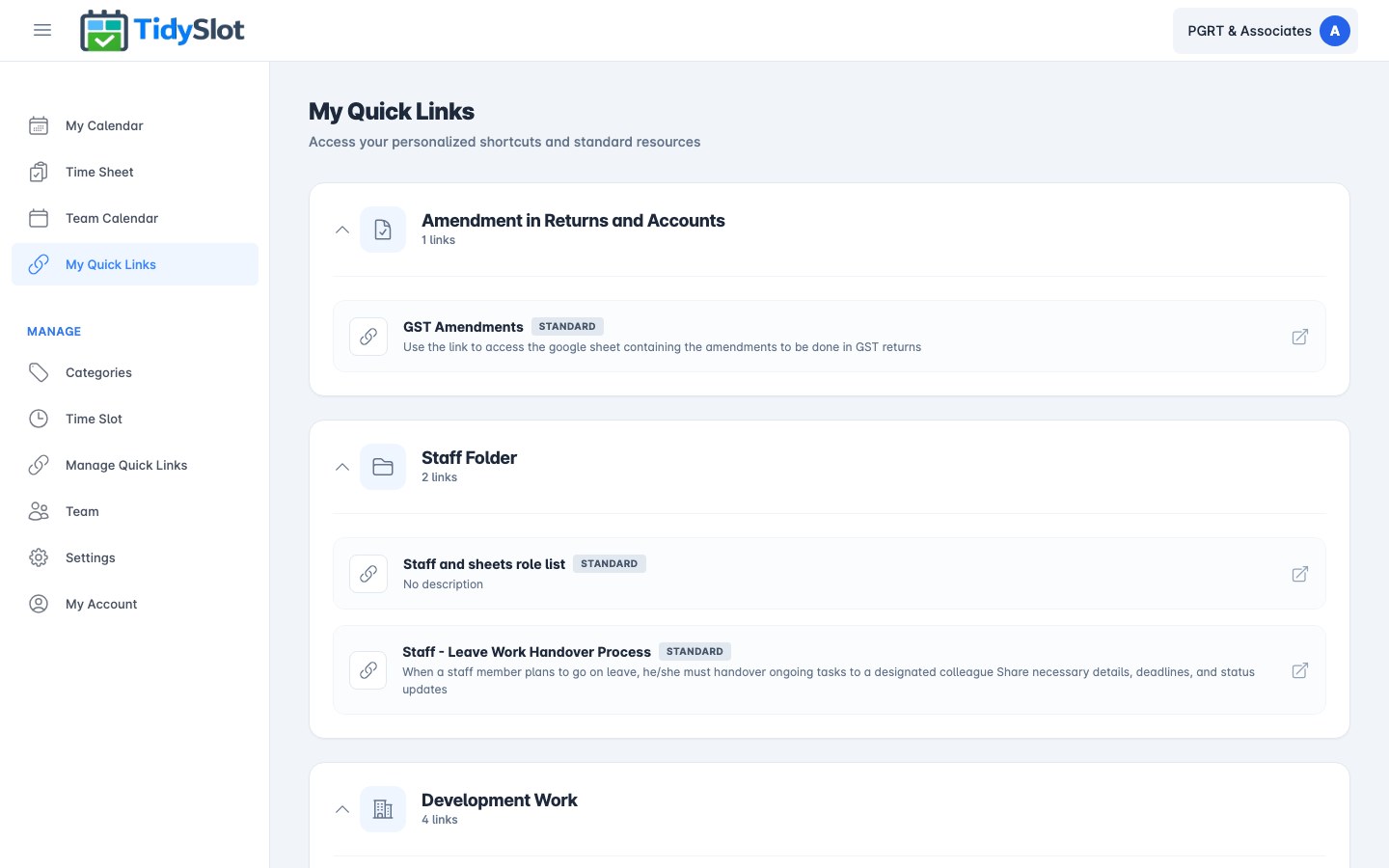
What are Quick Links?
My Quick Links is your team's shared reference library — a curated set of links to the websites, portals, and documents the whole team refers to regularly. This could include things like: client portals, internal SOPs, shared reference documents, team tools, or any website your team visits regularly.
Quick Links are different from the Open URL button on individual job cards. The Open URL on a job card is specific to that client's work (for example, a particular client's Google Sheet or GST login). Quick Links are general-purpose reference links for the whole team — the same link is available to everyone regardless of which job they are working on.
Admins create and maintain Quick Links in Manage Quick Links. Admins can set links to be visible to all team members (org-wide) or to specific team members only — so each person may see a slightly different set of links depending on their role or assignment.
Key Features
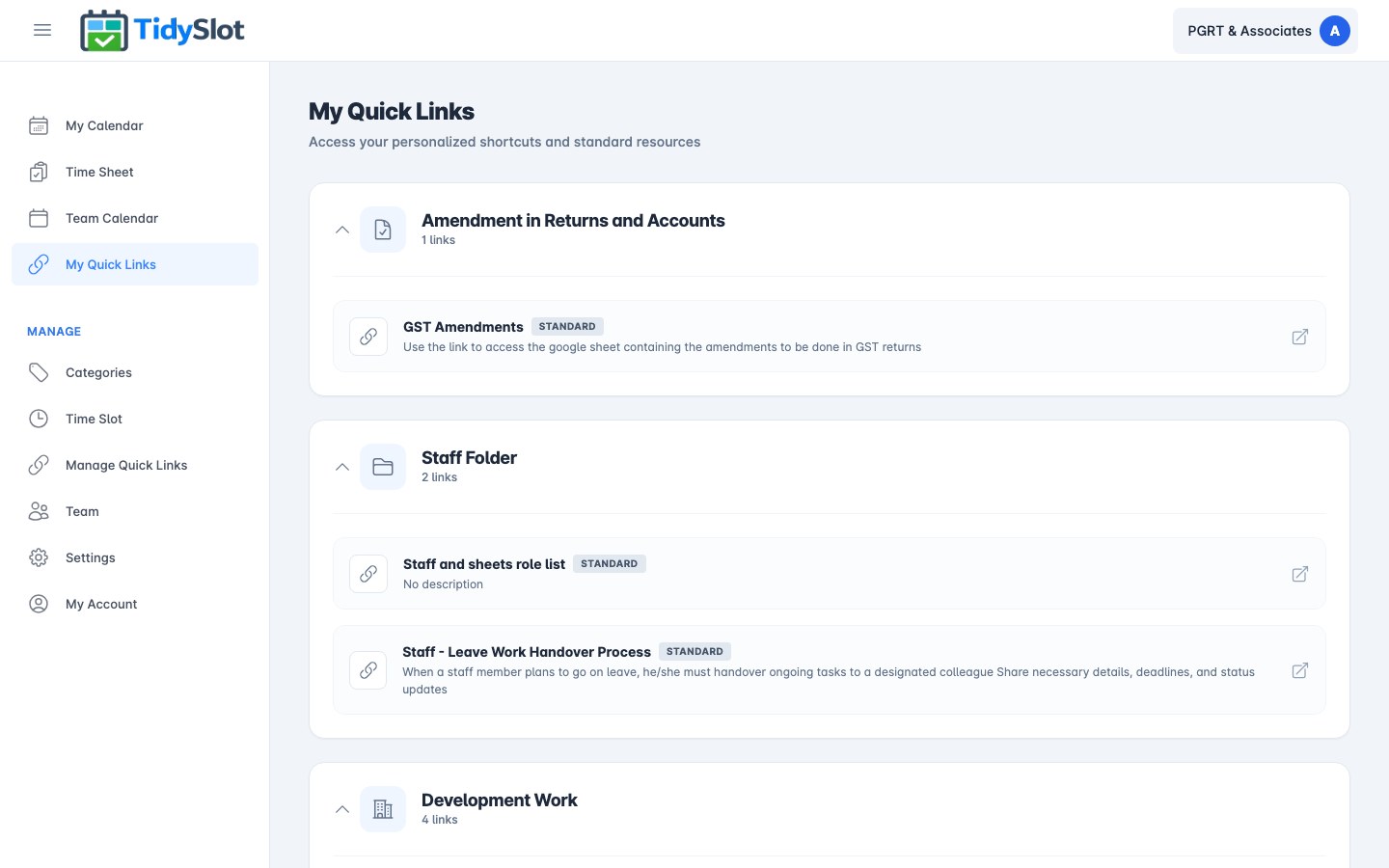
- Accordion groups — links are organised into expandable categories (e.g. "Client Onboarding", "Learning & Updates", "Free Resources for Clients"). Click any group header to expand or collapse it.
- One-click access — click the external link icon on any link to open it instantly in a new tab.
- Org-wide or member-specific — admins can set links to be visible to all team members (org-wide) or to specific team members only. Links marked as STANDARD are visible to everyone.
- Opens in a new tab — TidySlot stays open so you never lose your place.
How to Use My Quick Links
-
1Click "My Quick Links" in the sidebar
Under the Personal section of the left navigation. The page shows all link groups set up for your organisation.
-
2Expand the group you need
Links are grouped into accordion sections. Click any group header (with the ▼ arrow) to expand it and see the links inside. Click again to collapse.
-
3Click the link to open it
Click the external link icon (↗) next to any link to open it in a new browser tab. You stay logged in to TidySlot in the original tab.
Tips & Notes
Frequently Asked Questions
What's the difference between Quick Links and the Open URL button on a job card?
Quick Links are general-purpose reference links for the whole team — the GST portal, TRACES, firm SOPs. The Open URL button on a job card is specific to that one job — it opens the client's particular sheet, portal, or tool for that piece of work. Both serve different purposes and are set up separately.
What does the "STANDARD" badge on a link mean?
STANDARD means the link has been set by your admin to be visible to all team members across the organisation — it is a shared, org-wide resource. Links without the STANDARD badge may be assigned to specific team members only.
Can I add my own Quick Links?
No — Quick Links are managed by admins only. If there's a reference site your team regularly uses, ask your admin to add it via Manage Quick Links so everyone benefits.
Is there a limit on how many groups or links can be added?
No — there is no limit on the number of link groups or individual links. Admins can add as many as needed.
Why are there no links on my Quick Links page?
If the page is empty, your admin has not set up any Quick Links yet. Ask your admin to add links in the Manage Quick Links module.
Can link groups be reordered?
Groups cannot be reordered — they appear in the order they were created. However, admins can rename any group at any time via Manage Quick Links. If order matters for your team, use a number prefix in the group name (e.g. "01 - GST Portals", "02 - Internal SOPs").
Can I open a link inside TidySlot instead of a new tab?
All Quick Links open in a new tab to keep your TidySlot session active. This is by design — it ensures your schedule and work context remains open while you work in the external tool.