My Calendar
Your daily cockpit — every job you're assigned, the tool URL to open for each job, and a place to punch your hours and mark work done.
What is My Calendar?
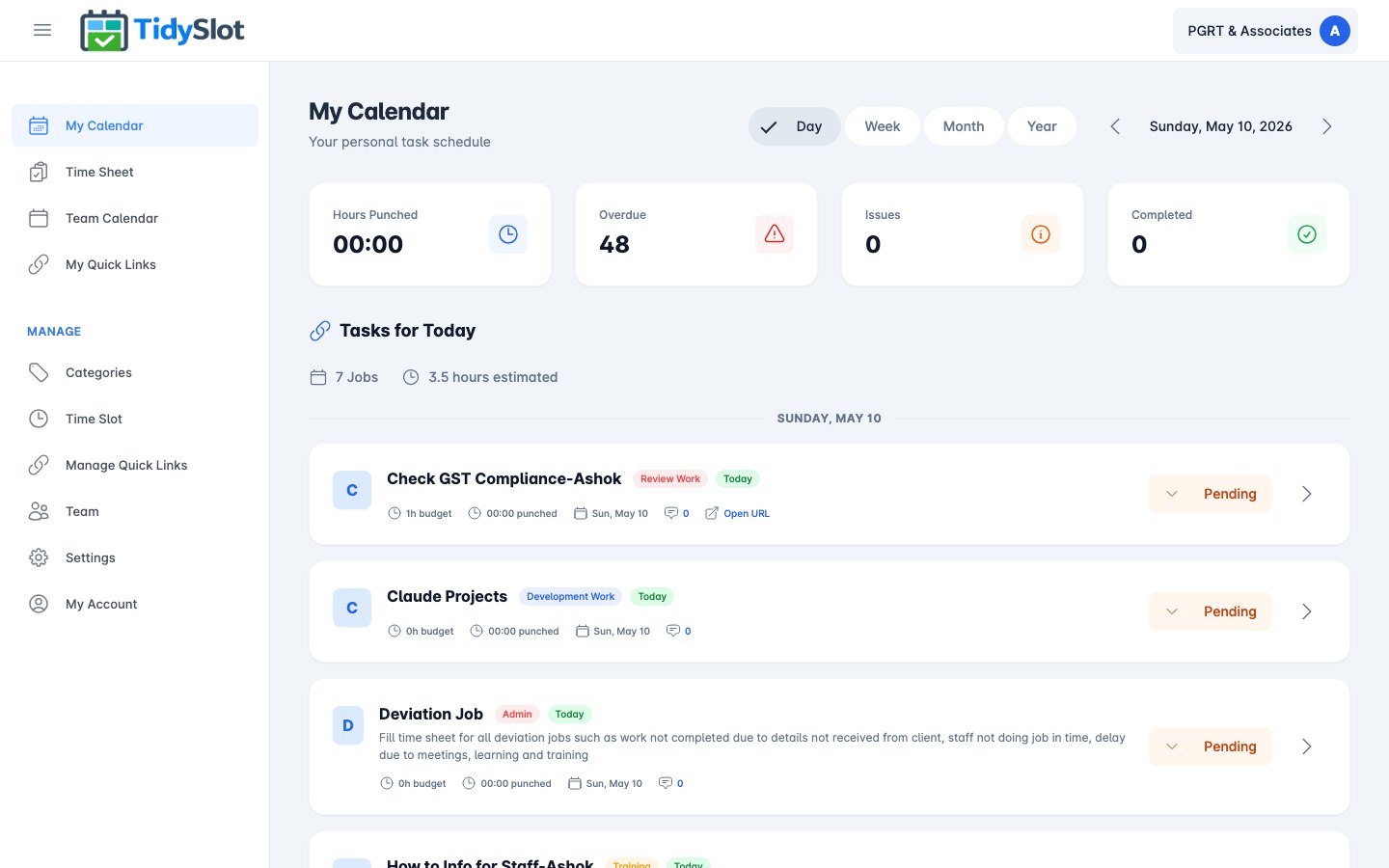
My Calendar is your personal work schedule. Every morning, open My Calendar to see exactly what you need to do today — no need to ask your manager, check WhatsApp, or open a spreadsheet. Your jobs are already there, organised by date.
Each job on your calendar shows the job name, category, status, and a direct link to the tool or document you need to open to do the work. Once you've done the job, punch your hours and mark it Done — that's your complete daily workflow.
If you want to see the full team's schedule, use Team Calendar instead.
Key Features
- Day / Week / Month / Year views — Day view is your primary daily view. Week and Month are useful for planning ahead.
- Job cards — each job shows the name, category tag, status (Pending / Done), budget hours, hours punched, and a direct "Open URL" link to the tool for that job.
- Stats bar (4 cards) — at the top of the page, four counters give you a quick health check:
- Hours Punched — total hours you have logged for the selected period.
- Overdue — jobs from earlier days that are still Pending. Click this card to filter to overdue jobs only — these need your attention first.
- Issues — jobs you have flagged because you were unable to complete them (e.g. missing information, technical error). Your admin can see these and will follow up.
- Completed — jobs you have marked as Done for the selected period.
- Date navigation — use the left/right arrows to move between periods. The current period label (e.g. "May 2026") is shown at the top right.
Your Daily Workflow
This is the complete workflow every team member should follow each working day:
-
1Open My Calendar in Day view
Click "My Calendar" in the sidebar. Day view is the default — you will see all the jobs scheduled for today.
-
2Check the Overdue count first
If the Overdue card shows a number greater than 0, click it to filter to overdue jobs. Complete or flag these before starting today's new jobs.
-
3Click "Open URL" on a job
Each job card has an "Open URL" link. Click it to open the specific tool, portal, or document you need for that job (e.g. the client's Google Sheet, the filing portal, the job tracker). This opens in a new tab — TidySlot stays open in your original tab.
-
4Do the work
Complete the job using the tool that opened. When done, come back to TidySlot.
-
5Punch your hours
Click the arrow (→) on the job card to open the job detail panel. Enter the actual hours you spent in the Punch Hours field.
⚠️ Punch hours cannot be edited after saving. Enter the correct hours before clicking Save — once saved, the entry is locked. -
6Mark the job Done
Click the status chevron (↓) on the job card and change the status to "Done". The job moves from Pending to Completed.
Flagging an Issue
If you cannot complete a job because of a missing document, access problem, unclear instructions, or any other blocker — flag it as an Issue so your admin is alerted.
-
1Open the job detail panel
Click the arrow (→) on the job card.
-
2Type your issue in the Comment field
Describe the blocker clearly: what you tried, what is missing, what you need to proceed.
-
3Save and change status to "Issue"
Save your comment and use the status dropdown to mark the job as "Issue". Your admin will see it in the Issues counter on their dashboard.
Tips & Notes
Frequently Asked Questions
Why does the Overdue count include jobs from weeks ago?
Overdue jobs carry forward until they are marked Done or flagged as an Issue. If a job from last week is still showing as Pending, it will continue to appear in your Overdue count. Complete it, flag it as an Issue, or ask your admin to reassign or remove it.
Can I add my own jobs to My Calendar?
No. Jobs are created by admins in the Time Slot module and assigned to team members. If you need a new job added to your calendar, ask your admin.
My calendar looks empty — what should I check?
If no jobs are scheduled for today, the app shows: "No job scheduled today contact admin or owner." Make sure you are in Day view and looking at today's date. Use the navigation arrows to check if jobs are assigned for other dates. If it is still empty, your admin has not set up any Time Slot assignments for you — contact them to get set up.
What is the difference between "Issues" and "Overdue"?
Overdue = jobs from past days that you have not yet completed. They need to be done.
Issues = jobs you have flagged because you cannot complete them without help. Your admin needs to resolve these first before you can proceed.
I am on leave — will my jobs still show?
Yes — your jobs continue to appear on your calendar while you are on leave. TidySlot does not have an automated leave management feature. Before going on leave: complete what you can in advance, ask a colleague to cover the rest (and ask your admin to reassign those slots), or complete the jobs when you return. Overdue jobs carry forward until addressed. A team member transfer feature is planned for a future release.
What is the "Open URL" link on each job?
It opens the specific tool or document for that job — for example, the client's filing portal, a shared spreadsheet, or a job management tool. Your admin attaches these URLs when setting up each job. Clicking it opens the URL in a new browser tab so you can do the work without losing your place in TidySlot.