Time Slot
Create and manage your organisation's recurring work assignments — define what the job is, attach the tool URL your team needs to open, set which days of the month the job appears on your team's calendars, and assign it to team members.
What is Time Slot?
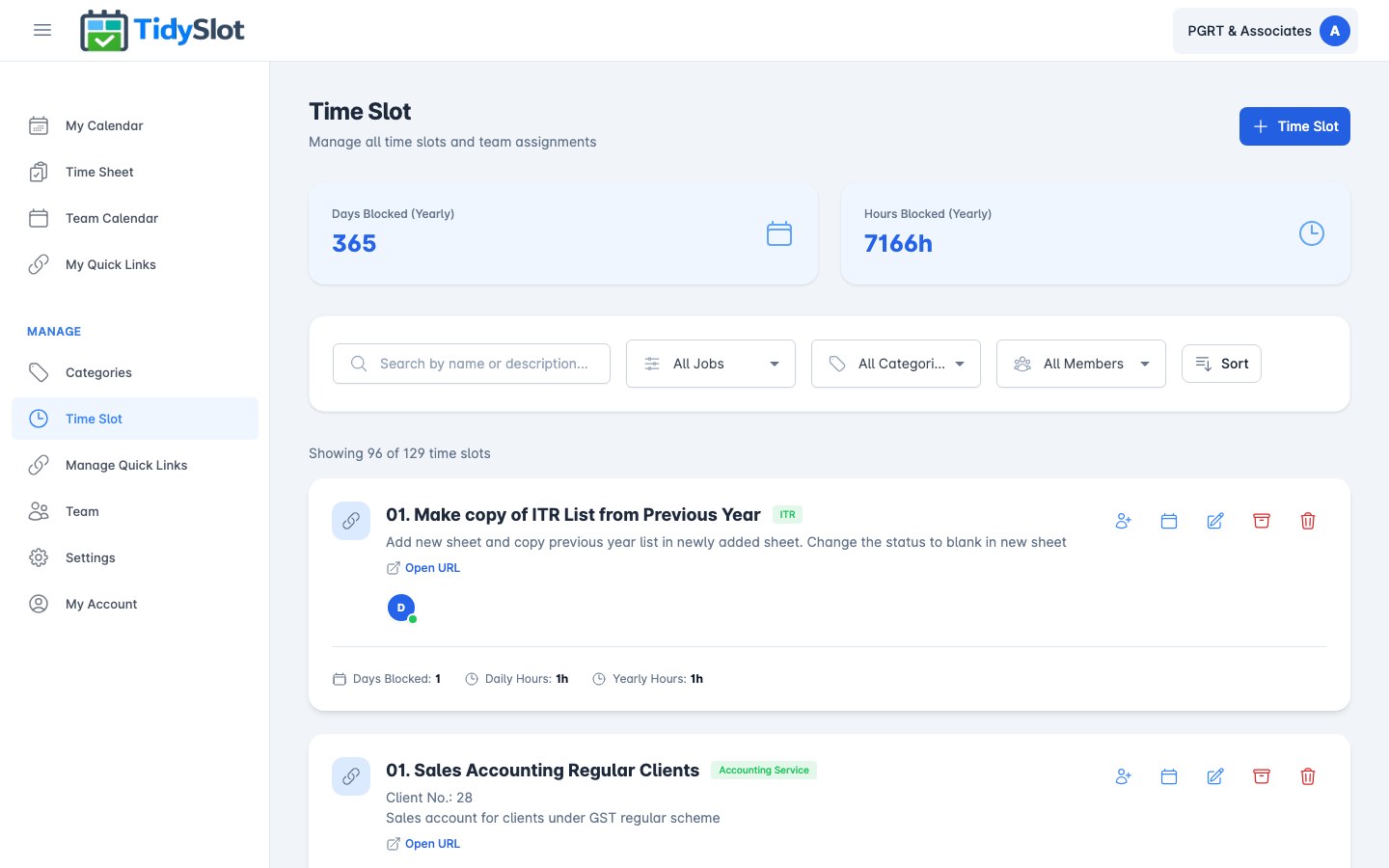
Time Slot is where admins define the recurring jobs and work assignments your team works on. Each time slot represents a type of ongoing work — with a name, a description, a category, daily hours, an optional URL to the tool or file used for that job, and the team members assigned to it.
Once a time slot is created and assigned, it appears on the relevant team members' My Calendar on the specific dates you have blocked. Team members can open the job URL directly from their calendar to access the tool for that job. The page shows two summary stats at the top: Days Blocked (Yearly) and Hours Blocked (Yearly) — the total across all active time slots for the year. Note: these stats may briefly show 0 on first load and then update — this is normal behaviour.
Key Features
- Named assignments — give each time slot a clear name so team members know exactly what job they are assigned to.
- Tool or file URL — attach a link to the tool, portal, or document your team uses for this work (e.g. a client portal, Google Sheet, or job management app).
- Category — link each time slot to a category for reporting and filtering.
- Hours per day — set how many hours per day this assignment takes, used to calculate total hours blocked.
- Team member assignment — assign one or more team members directly from the form.
- Block Days — choose exactly which dates of the month each job appears on a team member's calendar. A job can have a different recurring pattern for each assigned team member.
- Search and filter — search by name or description, filter by job type, category, or team member.
- Edit, Archive, or Delete — update a time slot, archive it (stops future appearances but keeps all historical time sheet data), or permanently delete it (removes all records). See the Archive vs Delete section below for important details.
How to Create a Time Slot
-
1Go to Manage → Time Slot
Click "Time Slot" in the Manage section of the left navigation to open the Time Slot management page.
-
2Click "+ Time Slot"
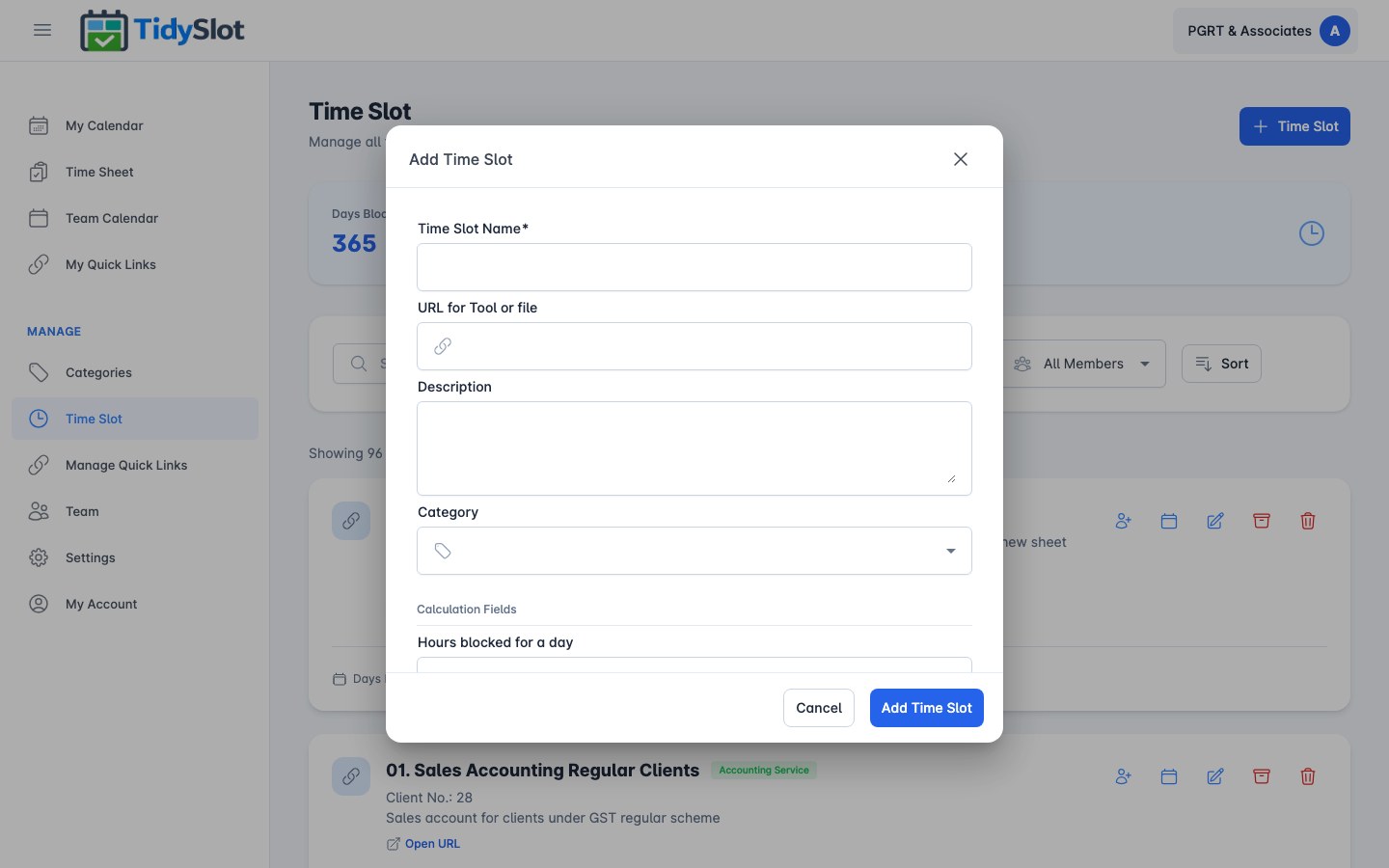
Find the blue "+ Time Slot" button at the top right of the page and click it to open the Add Time Slot form.
-
3Enter the Time Slot Name
Type a clear, descriptive name for this work assignment (e.g. "Client Onboarding", "Weekly Report", "Site Visit"). This is the only required field.
-
4Add a URL (optional)
Paste the URL of the client portal, Google Sheet, or tool your team uses to do this specific job. This is the link team members will click directly from their My Calendar when working on this job. For example: the client's GST portal, a shared Google Sheet for that client's records, or a job tracking system.
-
5Add a description and select a category
Write a short description explaining what this job involves, then select the relevant category from the dropdown.
-
6Set hours blocked for a day
Under Calculation Fields, enter how many hours per day this assignment occupies. This is used to calculate the total hours blocked for reporting.
-
7Assign to team members
Select one or more team members from the "Assign to Team Members" dropdown. The time slot will appear on their calendars once saved.
-
8Click "Add Time Slot"
Click the blue "Add Time Slot" button to save. The time slot will appear in the list and on the assigned team members' calendars.
How to Block Days for a Team Member
Blocking days sets which specific dates of the month a time slot appears on a team member's My Calendar. For example, blocking dates 10–15 for a GST Filing job means it will appear on that team member's calendar from the 10th to the 15th each month.
-
1Find the time slot in the list
Locate the time slot you want to schedule and look at the action icons on the right.
-
2Click the Calendar icon (Block Days)
Click the calendar icon. A popup will appear showing all team members assigned to this slot.
-
3Select a team member
Click on the team member whose schedule you want to configure. The Recurring Pattern modal will open.
-
4Set the Recurrence Type and select dates
Choose the recurrence type — options are Daily, Weekly, Monthly, Quarterly, or Yearly — then click the date numbers in the grid (1–31) to select which dates this job should appear. Click Save when done.
Managing time slots — Edit, Archive, and Delete
Each time slot in the list has three management actions. It is important to understand the difference between Archive and Delete before you act.
No end date. Slots recur indefinitely — there is no built-in end date. If a slot is no longer needed, archive it to stop future occurrences while preserving all historical time sheet data.
Archive — stops the job from appearing on future calendars, but keeps all historical time sheet data. Use Archive when a job is no longer active but you want to preserve the hours your team logged. Archived time slots can be viewed in the archived list.
Delete — permanently removes the time slot and all its historical time sheet data. This cannot be undone. If a team member punched hours against this job, those records will be permanently erased. Only use Delete if you are certain you do not need the time history for payroll or any other purpose.
- To Edit: Click the pencil (✏️) icon to open the form and update details, then save.
- To Archive: Click the archive icon. The job stops appearing on calendars. All past time sheet data is preserved. Archived slots can be unarchived — go to the archived list and click Restore to reactivate the slot and resume future occurrences.
- To Delete: Click the delete (🗑️) icon. Confirm when prompted. This permanently erases the time slot and all associated time records — this cannot be undone.
Searching and filtering
Use the search bar to find time slots by name or description. Use the dropdowns to filter by job type, category, or team member. The Sort button lets you order the list by different criteria.
Best Practices
Always assign a category
Every time slot must have a category. Categories drive the Time Sheet analytics, filtering in all calendar views, and reporting. A time slot without a category will not appear correctly in any report. When creating a time slot, selecting a category is not optional — make it a firm rule from day one.
URLs are optional — but highly recommended
A slot can be created with just a name and a schedule — URLs are not required. You can add or update URLs at any time by editing the slot, and this will not affect any past job records.
Use the URL field — it unlocks TidySlot's full value
The "URL for Tool or file" field is what separates TidySlot from a basic calendar. When a team member clicks their job in My Calendar, they land directly on the right client portal, Google Sheet, or tool — no asking, no searching. Always paste the specific URL for that client's file or portal, not a general homepage.
Good URL examples: a specific Google Sheet for that client's ITR data, the direct link to a client's GST portal, a client's folder in your cloud storage.
Slots fire even on Week Off days
A slot will still appear on team members' calendars even on days marked as Week Off in Organisation Settings. This is by design — team members are expected to review and manage their upcoming slots proactively. If a slot should not fire on certain days, adjust the Block Days pattern to exclude those dates.
Slots fire even on public holidays
There is no public holiday calendar in TidySlot. Slots fire on all selected dates regardless of national or regional holidays. Plan your recurring patterns accounting for holidays manually.
Archive, don't delete — payroll depends on it
When a job ends, use Archive. Archive stops the job from appearing on future calendars but keeps all the punched hours in the Time Sheet — which is your payroll record. Delete permanently erases that history. If you delete a time slot, all the hours your team logged against it are gone permanently and cannot be recovered.
Set block days before expecting results
Creating a time slot is step one. It will not appear on anyone's calendar until you set Block Days for each assigned team member. After saving a new time slot, immediately go to Block Days and configure the date pattern for each person assigned to it.
Tips & Notes
Frequently Asked Questions
Can a team member create or edit a time slot?
No. Only admins can create, edit, archive, or delete time slots. Team members see their assigned jobs on My Calendar and can punch hours, but cannot modify the time slot settings.
Why does "Days Blocked (Yearly)" show zero when I first open the page?
The yearly stats load a moment after the page opens. If you see zero briefly and then the correct numbers appear, this is normal. If the numbers remain at zero after waiting a few seconds, try refreshing the page. If the issue persists, contact support.
What is the difference between Archive and Delete?
Archive stops the job from appearing on future calendars but keeps all historical time sheet data — use this for jobs that have ended but whose hours history you want to preserve.
Delete permanently removes the time slot and all associated time records including punched hours. This cannot be undone. Use Delete only when you are certain the history is no longer needed.
What is the "URL for Tool or file" field for?
It is the direct link to the specific tool, client portal, or document your team uses to complete this job — for example, a client's GST portal, a shared Google Sheet, or a filing system. Team members click this link from their My Calendar to open the right tool in one click, without having to ask anyone where to go.
Can I have the same job appear on different dates for different team members?
Yes. Use Block Days to set separate date patterns for each team member assigned to the same time slot. Each member can have a different schedule for the same job.