Team Calendar
Your morning dashboard — see every team member's jobs for today, spot who is overloaded, check if anything is overdue, and leave comments on jobs that need your attention.
What is the Team Calendar?
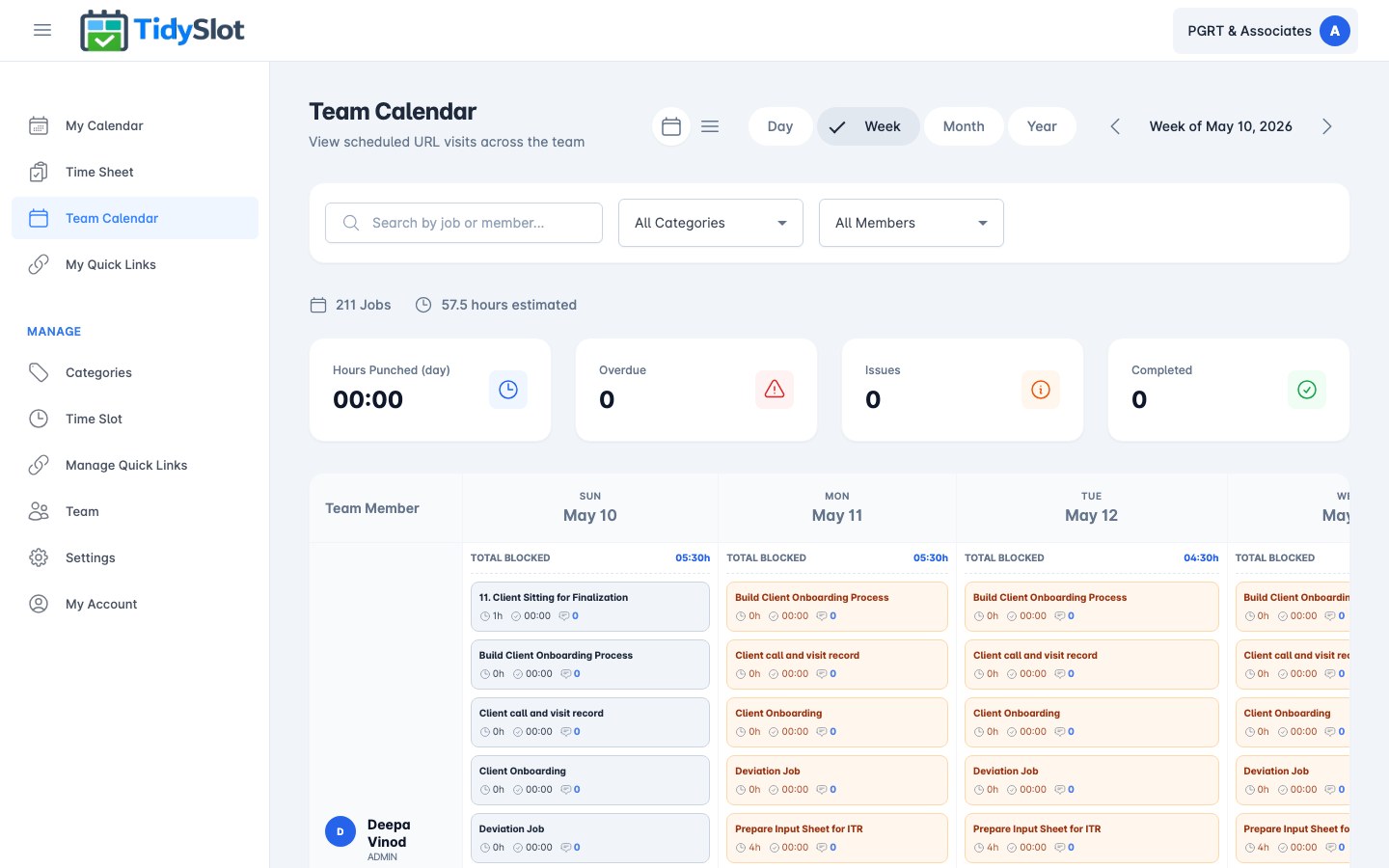
The Team Calendar is the admin's morning check. Open it at the start of each day to see the full team's schedule at a glance — who is doing what, which jobs are assigned, and whether anything looks off. It replaces the morning WhatsApp briefing: the schedule is already there, and so is each team member's workload for the day.
Unlike My Calendar (which only shows your own jobs), the Team Calendar shows every team member's assigned jobs side by side. Use the filters to narrow down by member or category when you need to focus on one person or one type of work.
Key Features
- Full team view — all team members' assigned jobs visible in one place for the selected period.
- Filter by team member — narrow the view to one person to check their workload or availability.
- Filter by category — see all jobs of a specific type (e.g. all GST Filing jobs across the team).
- Search bar — search by job name or team member name to find a specific entry quickly.
- Day / Week / Month views — use Day view for the morning check, Week for planning, Month for a broader overview. Note: Year view is currently unavailable.
- Calendar / List view toggle — switch between the visual calendar layout and a flat list. List view is faster for scanning many jobs at once.
- Job detail panel — click any job to open the detail panel. Admins can leave a comment on any job from this panel.
- Stats bar — the Overdue and Issues counts are shown at the top and act as clickable filters. Click the Issues card to filter to all issue-flagged jobs instantly. Click Overdue to see all jobs that are past their scheduled date. This is how admins spot blocked work without scrolling.
How to Use the Team Calendar
-
1Open Team Calendar from the sidebar
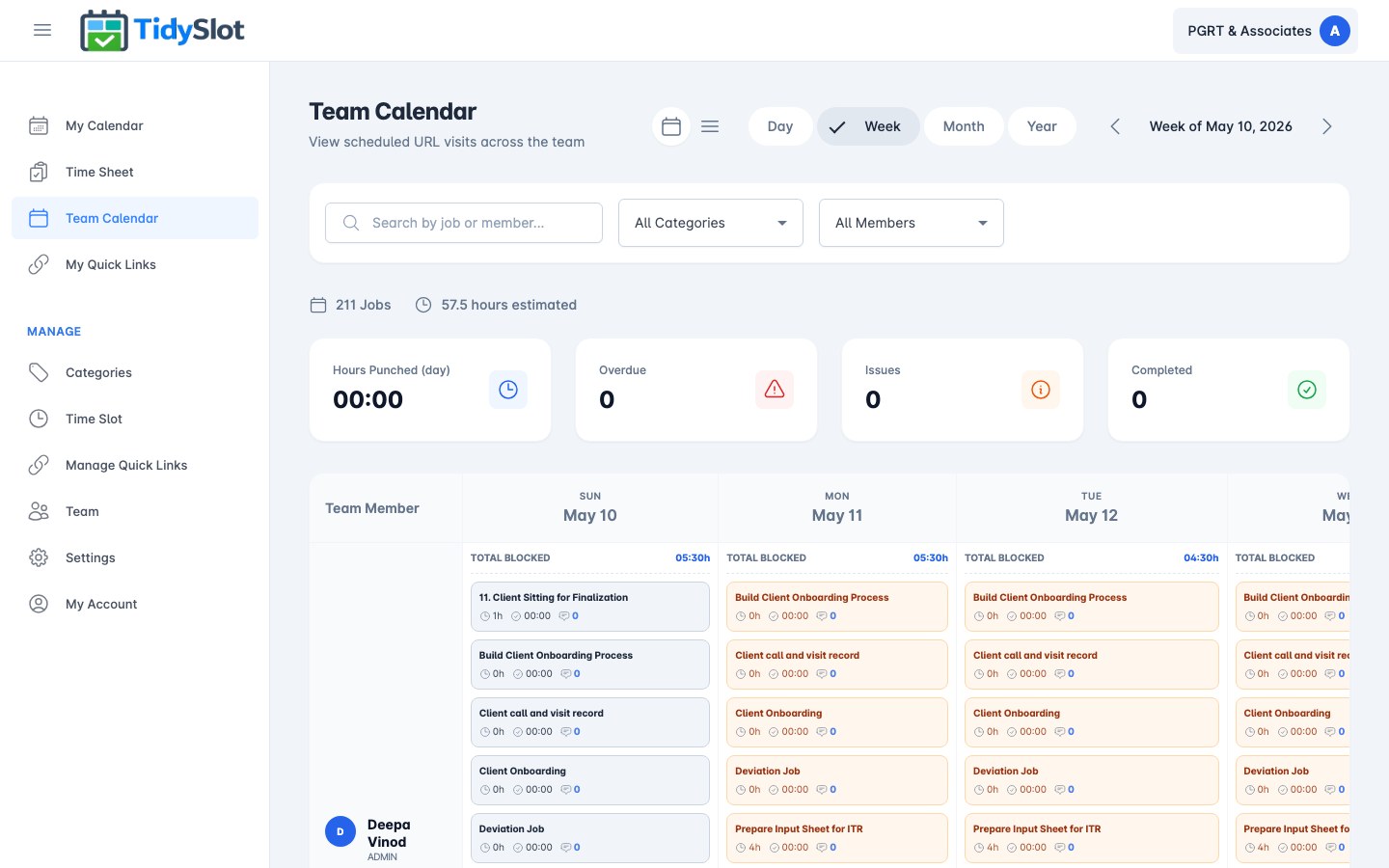
Click "Team Calendar" in the left navigation to open the shared team view.
-
2Browse the team's schedule
All team members' assigned jobs appear in the calendar. Use Day view for the morning check (who is doing what today), Week view for a full week at a glance, or Month view for broader planning. Year view is currently unavailable.
-
3Filter by team member (optional)
Use the filter at the top to narrow the view to one or more team members. This is helpful when you're checking the availability of a specific person.
-
4Switch between Calendar and List view (optional)
Use the Calendar / List toggle at the top of the page to switch between the visual calendar layout and a flat list of all time slots for the selected period. The list view is useful for quickly scanning all assigned time slots in sequence.
-
5Click a time slot for details
Click any time slot card to see its full details — name, category, time, assigned team member, and notes.
Tips & Notes
Frequently Asked Questions
Can team members see each other's jobs in the Team Calendar?
Yes. The Team Calendar is visible to all users — both admins and team members can see the full team's schedule. Team members cannot edit or reassign jobs from this view.
Why are some team members not showing up in the calendar?
If a team member is not visible, they may not have any jobs assigned for the selected period, or they may not have been added to the system yet. Admins can add team members from the Team module.
How do I check how many hours a specific team member has logged?
Go to the Time Sheet and filter by that team member's name. Time Sheet shows actual hours punched by each member across any selected period.
The page shows "0 Jobs · 0 hours estimated" briefly before loading — is something wrong?
No — the job count updates once the schedule data has fully loaded. This typically takes 2–3 seconds. If the page continues to show 0 after waiting, try refreshing.