Time Sheet
Review how many hours each team member has punched — used by admins for payroll calculations and for understanding how time is distributed across jobs.
What is the Time Sheet?
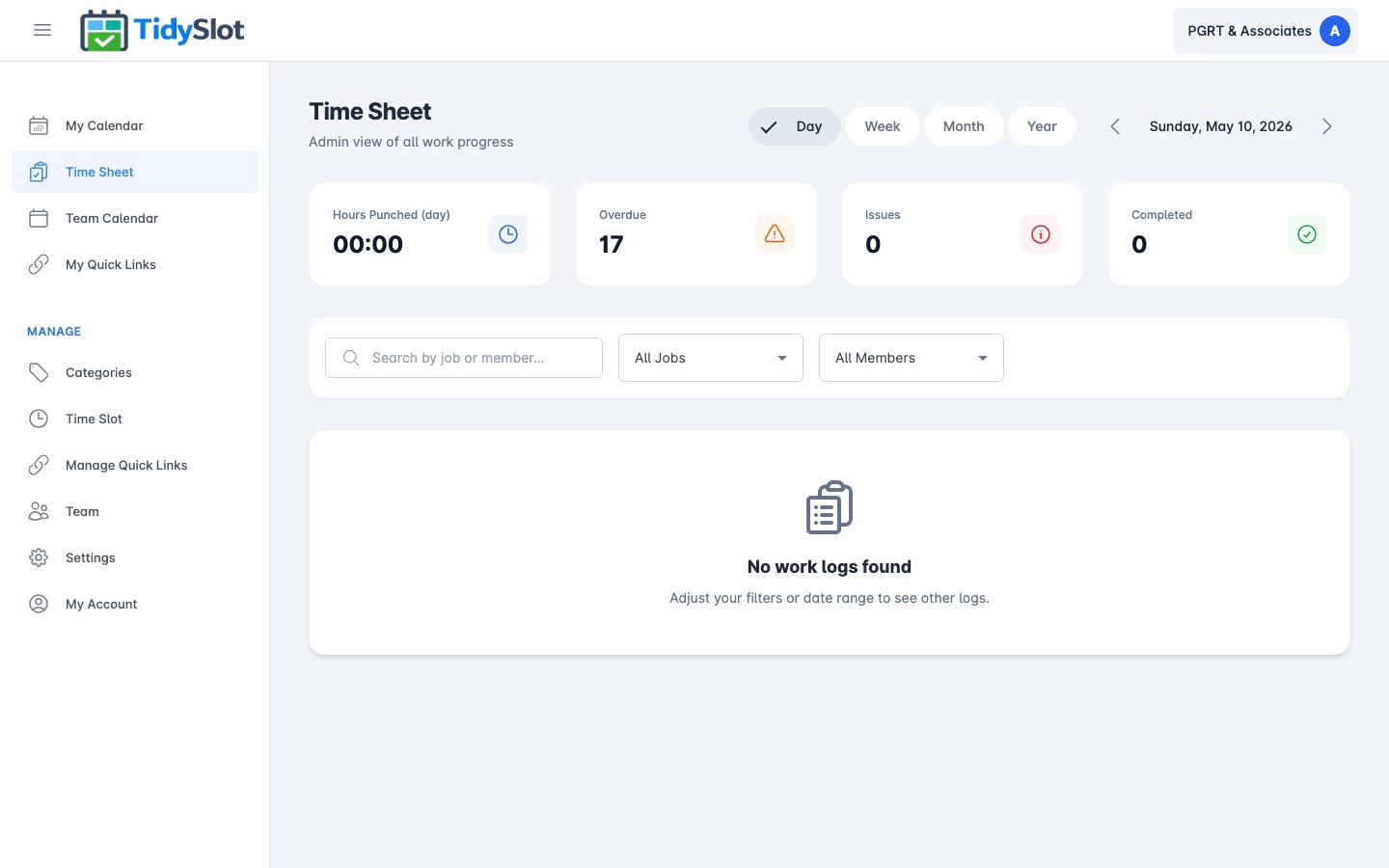
The Time Sheet shows all punched hours logged by team members against their assigned jobs. It serves two purposes: Admins see all team members’ hours across any period — used for payroll calculations, utilization review, and workload monitoring. Team members see only their own punched hours to review their personal work log.
The key difference from My Calendar: My Calendar shows your upcoming and current jobs. Time Sheet shows the hours record of completed work — what was done and how long it took.
Key Features
- Hours punched log — see the hours each team member has punched for any selected period.
- Day / Week / Month / Year views — use Month view at the end of each month for payroll. Use Day or Week for more granular checks.
- Job details inline — see the job name, category, and team member directly in each row.
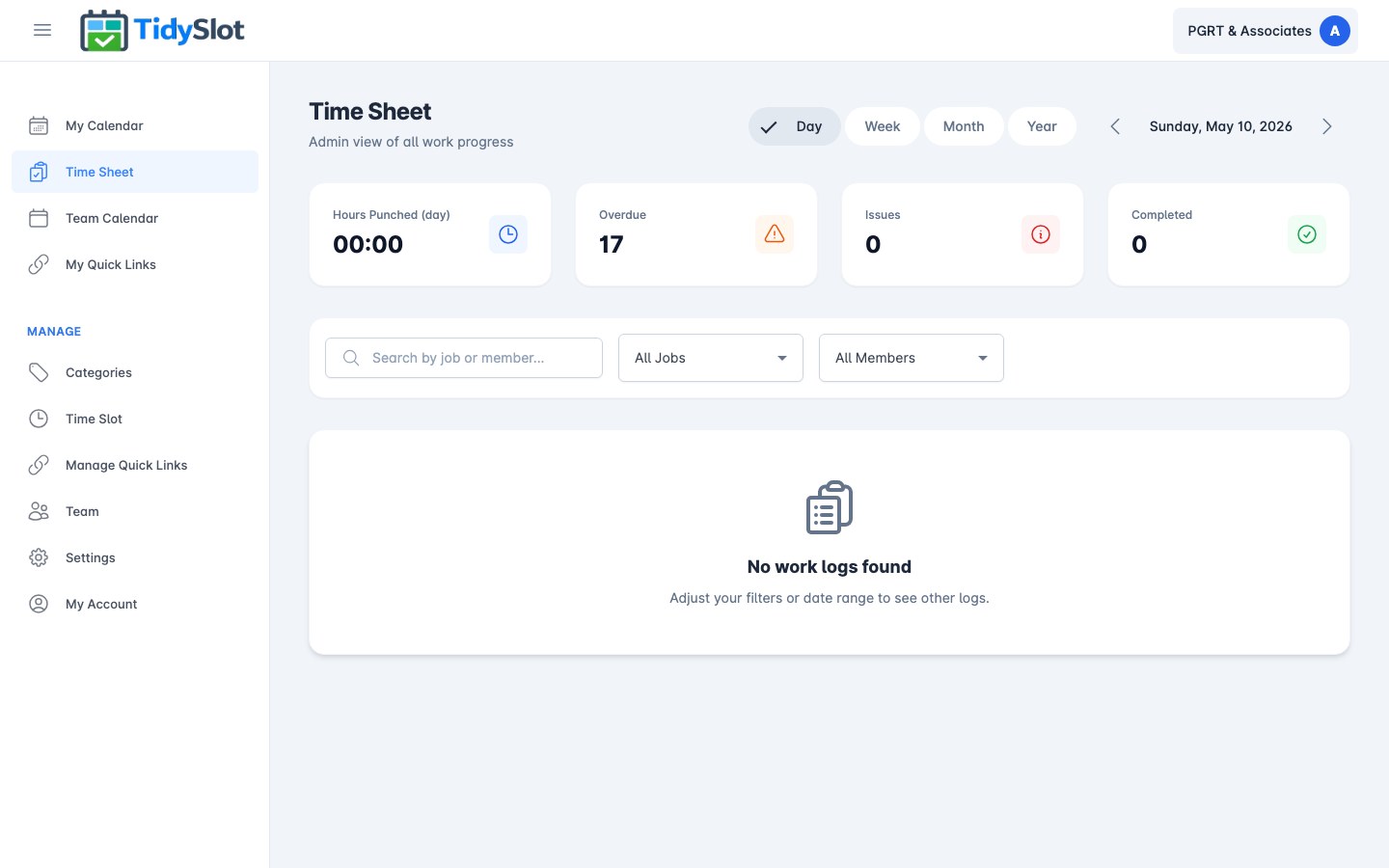
- Stats bar — the Hours Punched, Overdue, Issues, and Completed counts are shown at the top of the page. The Hours Punched stat shows total hours punched across all jobs in the selected period — it updates when you switch between Day / Week / Month / Year views.
How to Use the Time Sheet
Viewing your time records
-
1Open Time Sheet from the sidebar
Click "Time Sheet" in the left navigation. The page loads with the current week's records by default.
-
2Select a date range
Use the Day / Week / Month / Year toggle at the top to change the date range, or click the date heading to jump to a specific date using the date picker.
-
3Review the records
Each row shows the job name, team member, category, start time, end time, and total duration. Click a row to expand it for more detail.
Filtering by team member (Admin)
-
1Use the available filters
At the top of the Time Sheet, find three filter options: a Team Member dropdown (select a specific team member or All), a Job filter (narrow to a specific job type), and a Search bar to find entries by keyword.
-
2Apply your filters
Choose a team member from the dropdown, select a job from the job filter, or type in the search bar. The Time Sheet updates to show only matching records.
-
3Reset filters
To clear all filters and return to the full view, select "All" in the dropdowns and clear the search bar.
Tips & Notes
Frequently Asked Questions
Why can I see this page as a team member?
The Time Sheet is accessible to all users. Admins see all team members' records; team members can see their own punched hours to review their own work log.
Can I export the Time Sheet data?
No export is available from Time Sheet. For payroll purposes, review the hours directly on the Month view and note them in your payroll tool manually.
How are hours added to the Time Sheet?
Hours appear on the Time Sheet when a team member punches their hours against a job in My Calendar (by opening the job detail panel and entering hours in the Punch Hours field). If a team member has not punched their hours, no time will appear on the Time Sheet for that job.
Why does a team member show zero hours for the month?
This means they have not punched hours against their jobs for that period. Remind team members to log their hours in My Calendar after completing each job. Hours must be entered manually — they are not tracked automatically.