Team
Invite team members, manage roles and access, view your staff list, and control who can do what in your TidySlot organisation.
What is the Team module?
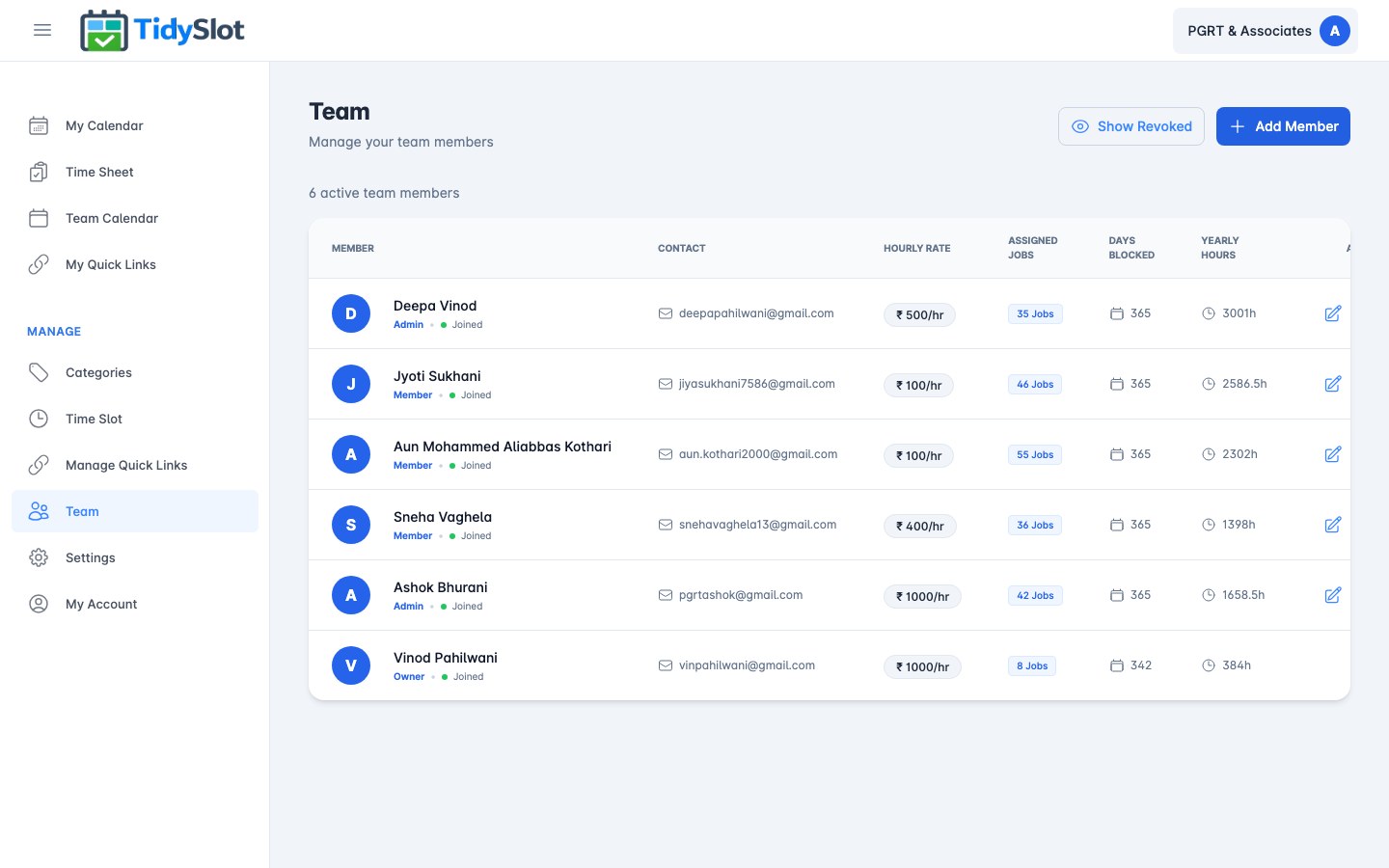
The Team module is the central place for managing who has access to your TidySlot organisation. From here, admins can invite new team members, view all current members, assign roles, and revoke access when someone leaves. The Assigned Jobs count shown for each member indicates the number of Time Slots currently assigned to them.
All access in TidySlot is role-based — there are three roles: Owner, Admin, and Team Member. The Owner is the account creator with full permanent access and cannot be revoked. Admins manage the organisation and its setup. Team Members see and complete their own assigned work.
The page shows a live count of active team members and lists everyone with their role, status, and action buttons. Use the Show Revoked button at the bottom of the list to see team members whose access has been removed — their historical job and time records remain in the system even after revoking.
Owner vs. Admin vs. Team Member Roles
| Feature / Permission | Admin | Team Member |
|---|---|---|
| My Calendar | ✔ Yes | ✔ Yes |
| Time Sheet | ✔ Yes (all) | ✔ Yes (own) |
| Team Calendar | ✔ Yes | ✔ Yes |
| My Quick Links | ✔ Yes | ✔ Yes |
| My Account | ✔ Yes | ✔ Yes |
| Categories (Manage) | ✔ Yes | ✗ No |
| Time Blocker (Manage) | ✔ Yes | ✗ No |
| Manage Quick Links | ✔ Yes | ✗ No |
| Team (Manage) | ✔ Yes | ✗ No |
| Organisation Settings | ✔ Yes | ✗ No |
How to Invite a Team Member
-
1Go to Team in the sidebar
Click "Team" in the Manage section of the left navigation (visible to admins only).
-
2Click "Add Member"
Find the Add Member button at the top of the Team page.
-
3Enter their email address
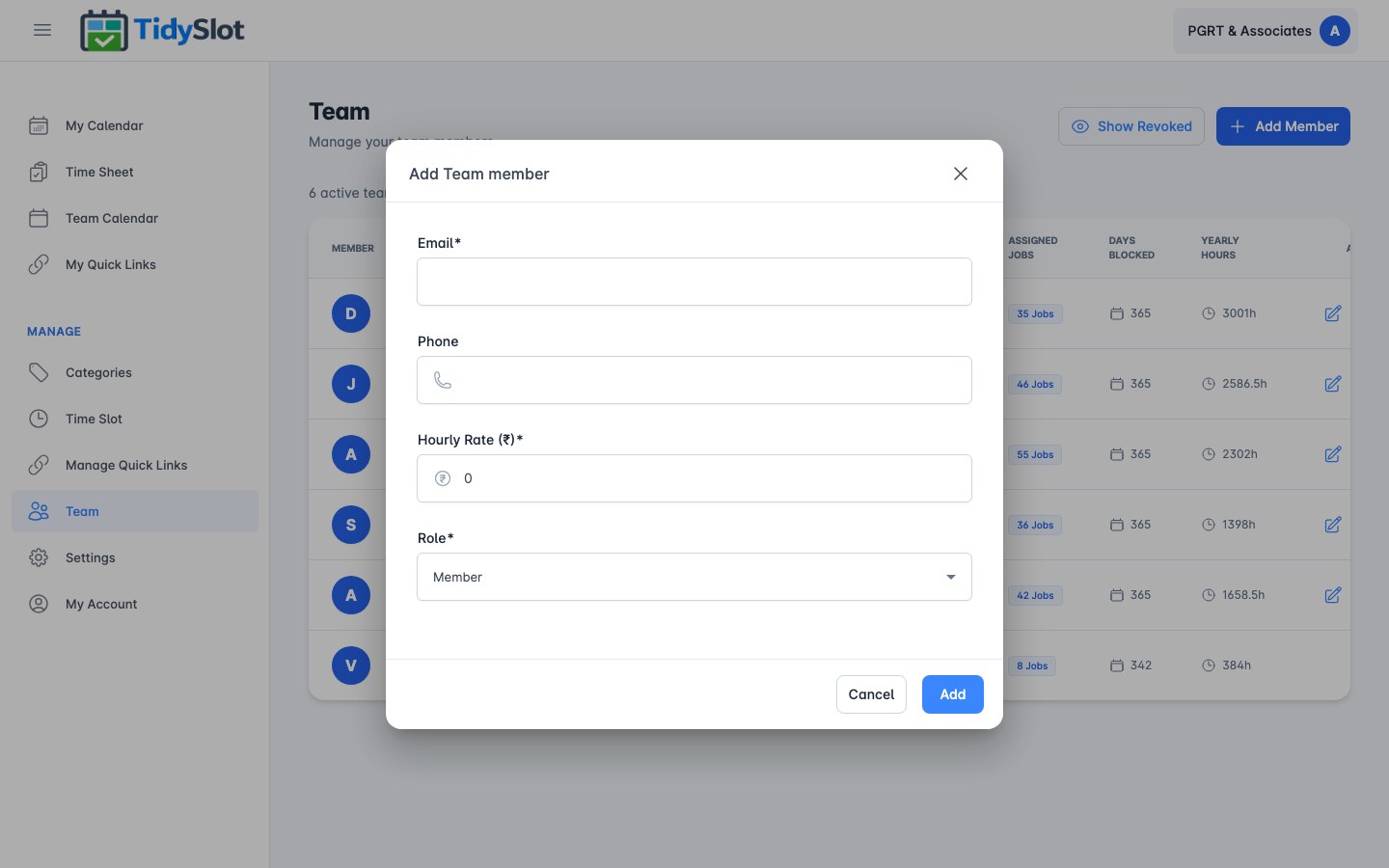
Type the new team member's work email address in the Email field. This is the address they will use to log in.
-
4Add phone and hourly rate
Optionally enter their phone number. The Hourly Rate (₹) field is required — enter their hourly billing or cost rate, or leave it at 0 if not applicable.
-
5Select their role
Choose "Admin" if they need full management access, or leave as "Member" for standard team access. Most staff should be set to Member.
-
6Click "Add"
Click the Add button. The team member will be added to the organisation and will receive an email to set up their account and log in.
Managing Existing Team Members
Editing a team member's details
- Find the team member in the list and click the Edit button (pencil icon) in the Actions column.
- The Edit form lets you update their phone number, hourly rate (₹), and role (Admin / Member). You can promote a Team Member to Admin or change an Admin back to Team Member at any time.
- Save the change. Role changes take effect immediately — the team member may need to log out and back in to see updated access.
Revoking a team member's access
- Find the team member in the list and click the Revoke button (ban icon) in the Actions column.
- The team member immediately loses access and cannot log in. Their assigned slots remain active in the system — they just cannot complete them. Past job records and punched hours are fully preserved.
- To restore a revoked member, click Show Revoked to reveal them in the list, then click the Restore button (circular arrows icon) on their row. When restored, the team member regains login access and all their previous slot assignments automatically reappear on their calendar — no need to reassign slots.
Tips & Notes
Frequently Asked Questions
Can a team member change their own role to Admin?
No. Role changes can only be made by existing admins. Team members cannot elevate their own access.
What happens if I accidentally invite someone with the wrong email?
Invitations cannot be resent once sent. If the wrong email was used, you will need to revoke or remove that entry and send a fresh invitation to the correct email address.
Can I view a team member's jobs without logging in as them?
Yes — use the Team Calendar and filter by that team member's name. You can see all their assigned jobs for any period. For their hours, filter the Time Sheet by their name.
Is there a limit on the number of team members?
No — there is no limit on the number of team members you can add to your TidySlot organisation.