Categories
Create and manage the job categories that organise your team's work — service types, job classes, and billing groups.
What are Categories?
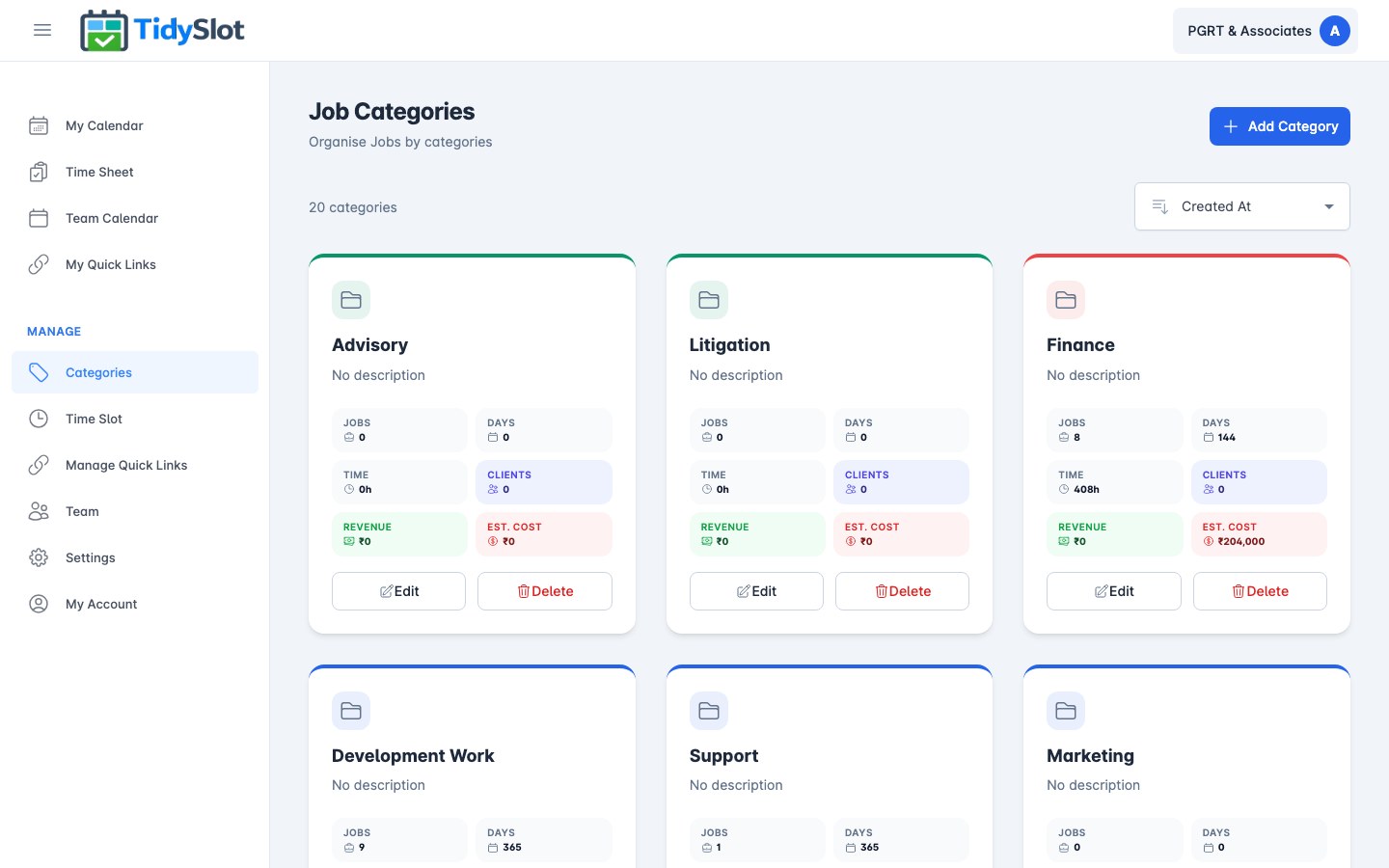
Categories organise your team's recurring work into meaningful groups. There are no restrictions on how you define them — use them for each service you offer (e.g. GST, Income Tax, Audit, TDS) and each back-office operation. Think of a category as a service or workflow area, and the jobs within it as the individual steps in that workflow.
The category tag appears on every job card in My Calendar, Team Calendar, and Time Sheet — making it easy to see what type of work is scheduled, filter by service type, and understand workload distribution at a glance. Categories also drive the colour coding throughout the app.
Key Features
- Create categories — add as many job types as your business needs.
- Colour coding — pick from 10 colours. Use colour to communicate meaning for your team — for example, green for revenue-generating services, grey for internal or admin work, or any colour-coding convention that makes sense for your organisation.
- Live stats per category — each category card shows: Jobs, Days, Hours (from slot activity); Revenue (entered manually by you in your own tracking sheet — TidySlot displays what you input, it doesn't auto-capture revenue); Estimated Cost (calculated from team members' hourly rate × time logged).
- Edit category details — rename or recolour a category at any time. Changes apply instantly to all jobs using that category.
- Delete unused categories — remove categories that are no longer in use.
How to Manage Categories
Adding a new category
-
1Go to Manage → Categories
Click "Categories" in the sidebar under the Manage section. This page is only visible to admin users.
-
2Click "Add Category"
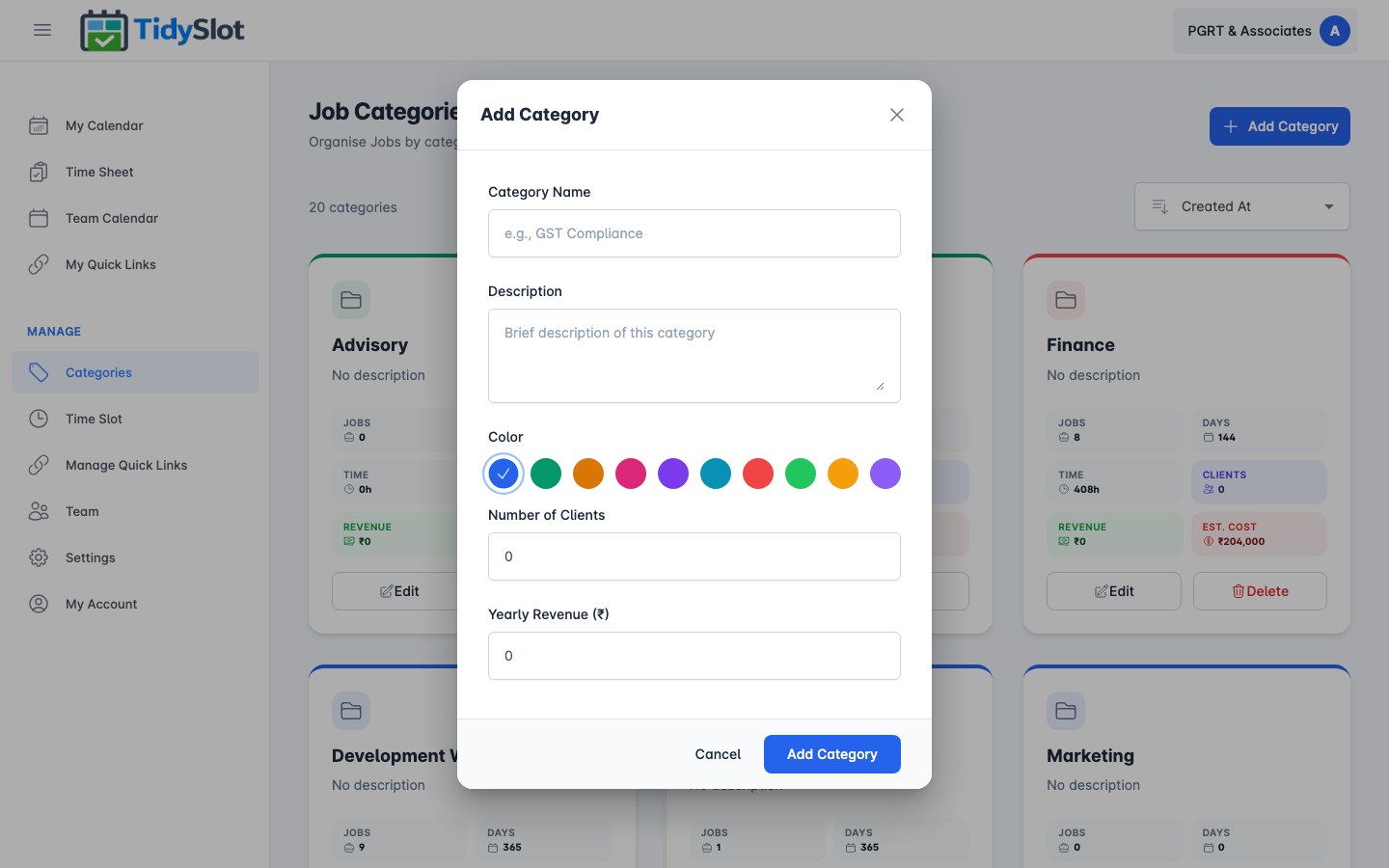
Find the "Add Category" button at the top right of the categories list. A modal will open.
-
3Enter the category name
Type a clear, descriptive name for the job type. Examples: "Monthly Reporting", "Client Review", "Compliance Filing", "Accounts Finalization", "Project Delivery".
-
4Choose a colour
Pick from 10 colour swatches. This colour will appear as a left border on every job card in this category across all calendar and time sheet views.
-
5Save the category
Click Save. A "Category added successfully" confirmation appears. The new category is now available when creating or editing time slots.
Editing a category
- Find the category card and click the Edit button (pencil icon).
- Update the name or colour as needed.
- Click Save. The change applies immediately — all job cards using this category update to show the new name and colour.
Deleting a category
- Find the category and click the Delete button (trash icon).
- Confirm the deletion when prompted.
Best Practices
One concept per category name
Each category should represent a single type of work. Avoid combining two different job types into one name — for example, "Delivery Customer Success" combines two unrelated work types into one label, which breaks your filters and reports. If you need to distinguish sub-types, use the description field, not the category name.
Good examples: "GST Filing", "TDS Return", "Audit", "ROC Compliance", "Accounts Finalisation"
Avoid: "GST and TDS", "Compliance Work", "Audit/Tax"
Control the order with number prefixes
Categories are sorted alphabetically. If you want them to appear in a specific order (e.g. your most-used services first), use a number prefix: "01-GST", "02-Income Tax", "03-Audit", "04-TDS". This also communicates workflow sequence to your team — the number tells them the priority or order of service delivery.
Keep the list short and actionable
5 to 10 well-named categories is enough for most service firms. More categories means more decisions every time a time slot is created — and harder-to-read reports. If you find yourself with more than 15 categories, review and consolidate.
Every time slot must have a category
Categories drive filtering, reporting, and the Time Sheet analytics. A time slot without a category will not appear correctly in any report. Review your time slots monthly to catch any that are uncategorised.
Tips & Notes
Frequently Asked Questions
Can team members see categories?
Team members can see the category assigned to their jobs, but they cannot access the Categories management page or make any changes to categories.
What happens to existing jobs if I delete a category?
Jobs that used the deleted category continue to run normally — they just appear without a category label. No job history or time sheet data is affected. If you want to keep the category label for those jobs, reassign them to a different category before deleting, or simply rename the old category instead of deleting it.
Is there a limit to how many categories I can create?
There is no limit on the number of categories. That said, 8–12 well-named categories is enough for most CA firms. More categories means more complexity in reports and filters.