My Account & Settings
Update your personal profile, change your password, manage your account preferences, and (for admins) configure your organisation settings.
My Account All Users
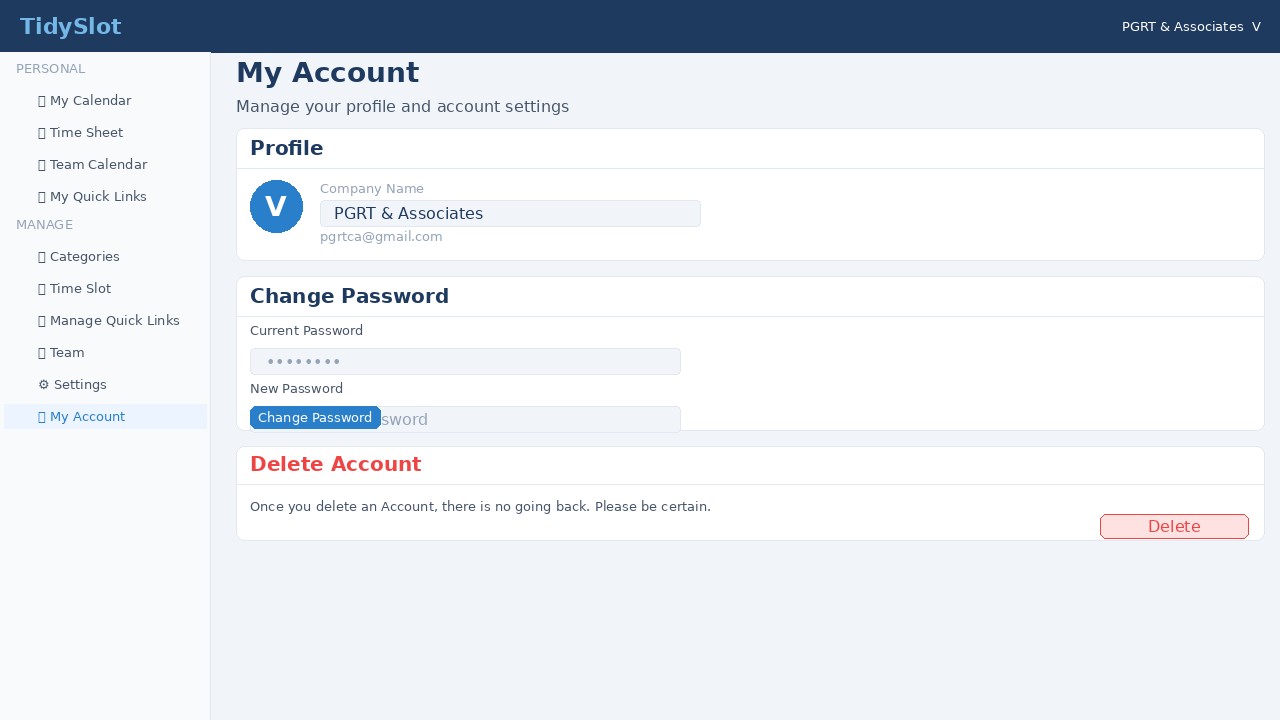
Every user — admin and team member alike — has a personal My Account section for managing their own profile and preferences.
Updating your profile
-
1Go to My Account in the sidebar
Click "My Account" or your name / avatar in the left navigation or top bar.
-
2Edit your profile details
You can update your company name (displayed in the top navigation bar) from My Account. Note: your email address and display name cannot be changed directly — contact your admin if these need to be updated.
-
3Save your changes
Click the Save or Update button to apply your changes. Your name and profile will be updated across the app.
Changing your password
-
1Go to My Account → Change Password
Find the Change Password section within My Account.
-
2Enter your current password
You must confirm your existing password before setting a new one.
-
3Enter your new password
Type your new password in the "New password" field. Use a strong password with at least 8 characters, mixing letters, numbers, and symbols.
-
4Save the new password
Click Update Password. You may be asked to log in again with the new password.
Deleting Your Account All Users
-
1Scroll to the bottom of My Account
The "Delete this Account" option is at the very bottom of the My Account page, clearly separated from other settings.
-
2Click "Delete this Account"
A tooltip will appear instructing you to contact support to complete the deletion. This prevents accidental account removal.
-
3Contact support to complete deletion
Email support@tidyslot.com to request account deletion. The support team will verify your identity and complete the process.
Organisation Settings Admin Only
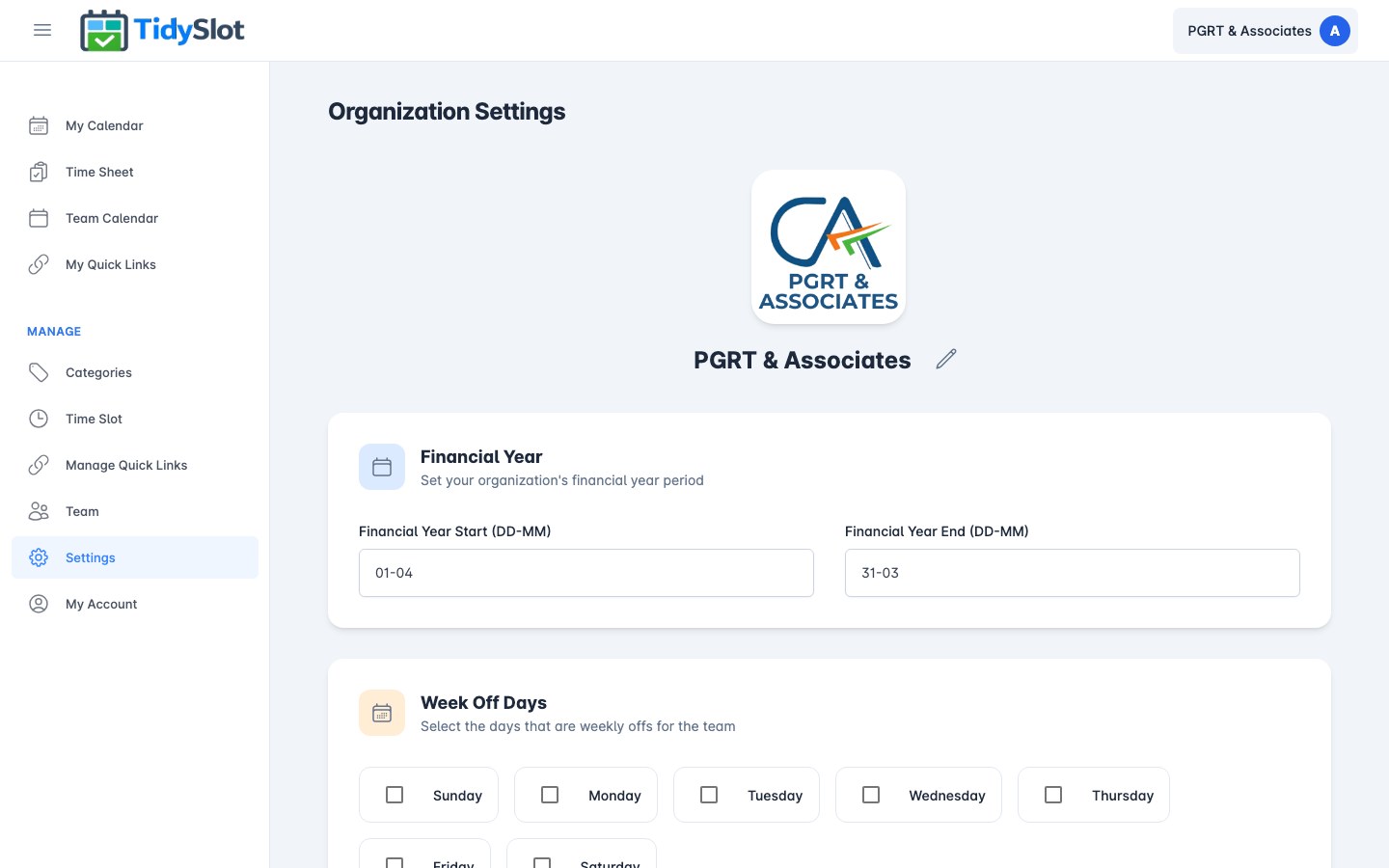
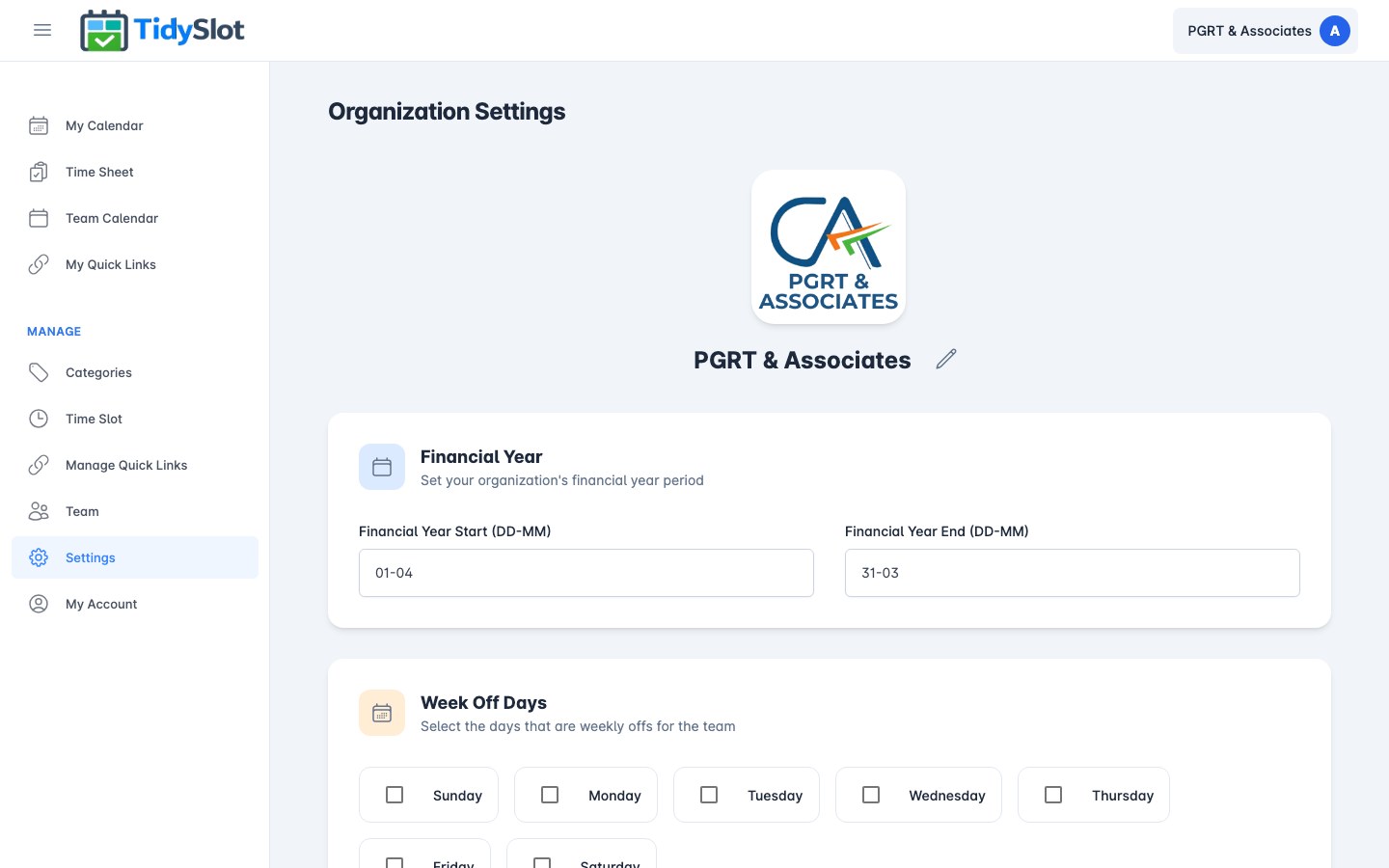
Admins have access to a separate Organisation Settings section (sometimes shown as "Settings" or "My Organisation" in the sidebar). This covers settings that apply to the whole organisation — not just the individual user.
What you can configure in Organisation Settings
- Financial year — set your financial year start and end dates (DD-MM format) for reporting alignment.
- Week off days — select which days of the week are weekly offs for your team (e.g. Sunday, Saturday).
- Monthly working hours — set the default monthly hours for team members, used in capacity and reporting calculations.
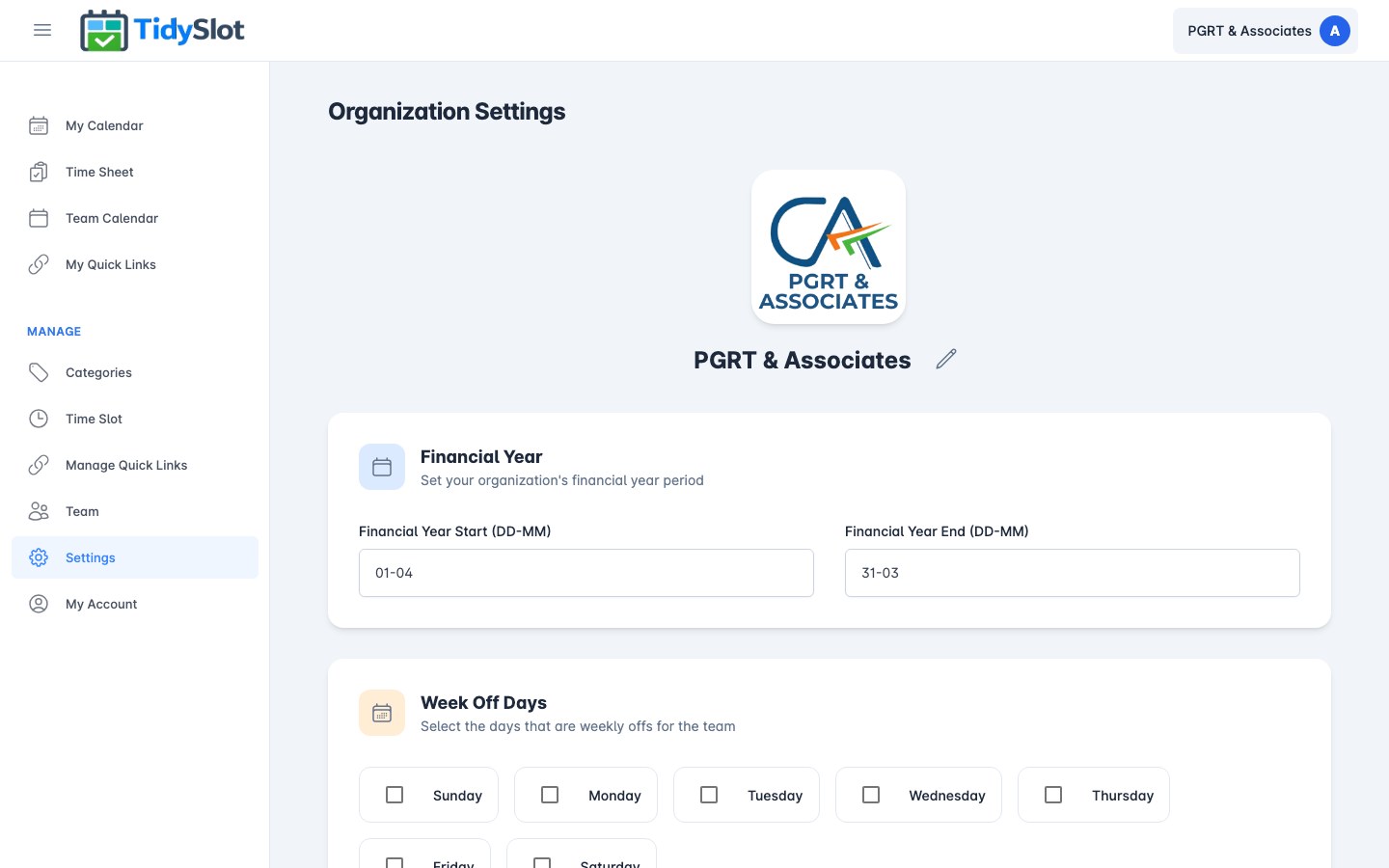
My Account = your personal settings (name, password, account deletion).
Organisation Settings = financial year, week off days, and monthly working hours for the whole organisation.
Tips & Notes
Frequently Asked Questions
I forgot my password — how do I reset it?
Go to app.tidyslot.com and click "Forgot Password" on the login page. Enter your email address and follow the reset link sent to your inbox.
Can I change my email address?
Email addresses cannot be changed within TidySlot. If you need to use a different email, ask your admin to invite you with the new email address and revoke your old account. Your new account will start fresh — slot reassignment will be required.
Why is the "Delete this Account" button not asking for confirmation?
A confirmation step is being added to the Delete Account flow in an upcoming update to prevent accidental deletions. Until then, please be careful when clicking the delete button — the warning message is real. If you deleted your account accidentally, contact support immediately at support@tidyslot.com.
Can an admin change another team member's password?
No — admins cannot change team members' passwords. Each team member manages their own password from their My Account page. If a team member has forgotten their password, they should use the "Forgot Password" link on the login screen to reset it themselves.
Can team members access Organisation Settings?
No. Organisation Settings is visible and accessible only to admins. Team members who try to access admin pages are redirected to their My Account page.