New Firm Setup Guide
Get your firm live on TidySlot in under 30 minutes. This guide walks you through every step — from first login to your team's first structured workday.
Step 1 — Configure Organisation Settings
Before anything else, set up your firm's core settings. This takes under 2 minutes.
-
1Go to Organisation Settings in the sidebar
Look for "Settings" or "My Organisation" in the left navigation.
-
2Set your Financial Year
Enter your financial year start and end dates in DD-MM format. For India (April–March financial year): Start = 01-04, End = 31-03. Adjust to match your organisation's financial year.
-
3Set your Week Off Days
Select which days your firm is closed (e.g. Sunday only, or Saturday + Sunday). Note: this setting is informational — slots will still fire on Week Off days unless you manually exclude those dates in each slot’s Block Days pattern.
-
4Set Monthly Working Hours
Enter the default number of working hours per month for your team. This is used in capacity and reporting calculations (e.g. 208 hours for a standard full-time month).
-
5Save Settings
Click Save. A "Settings saved successfully" confirmation will appear. You're done with Step 1.
Step 2 — Invite Your Team
Add each team member so they can log in and see their assigned work.
-
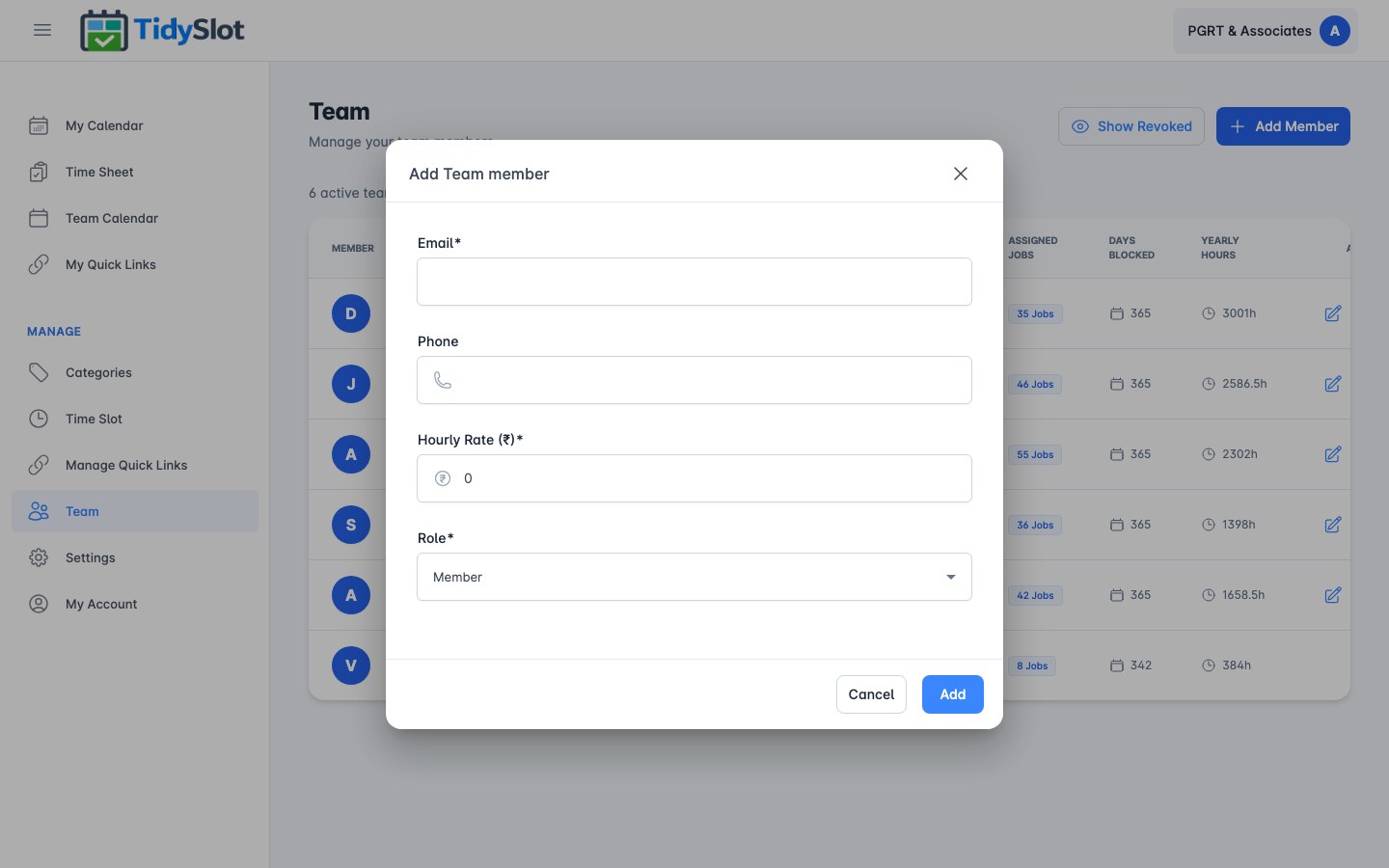
1Go to Team in the sidebar
Click "Team" in the left navigation. This is admin-only.
-
2Click "Invite Member"
Enter the team member's name and email address. Select their role — "Team Member" for most staff, "Admin" only for partners who need to create and manage time slots.
-
3Send the invitation
Click Invite. The team member receives an email with a link to set their password and log in. Repeat for each person.
Step 3 — Create Your Categories
Categories classify the types of work your firm does. They drive reporting and colour coding across all views. Set these up before creating time slots — every time slot needs a category.
-
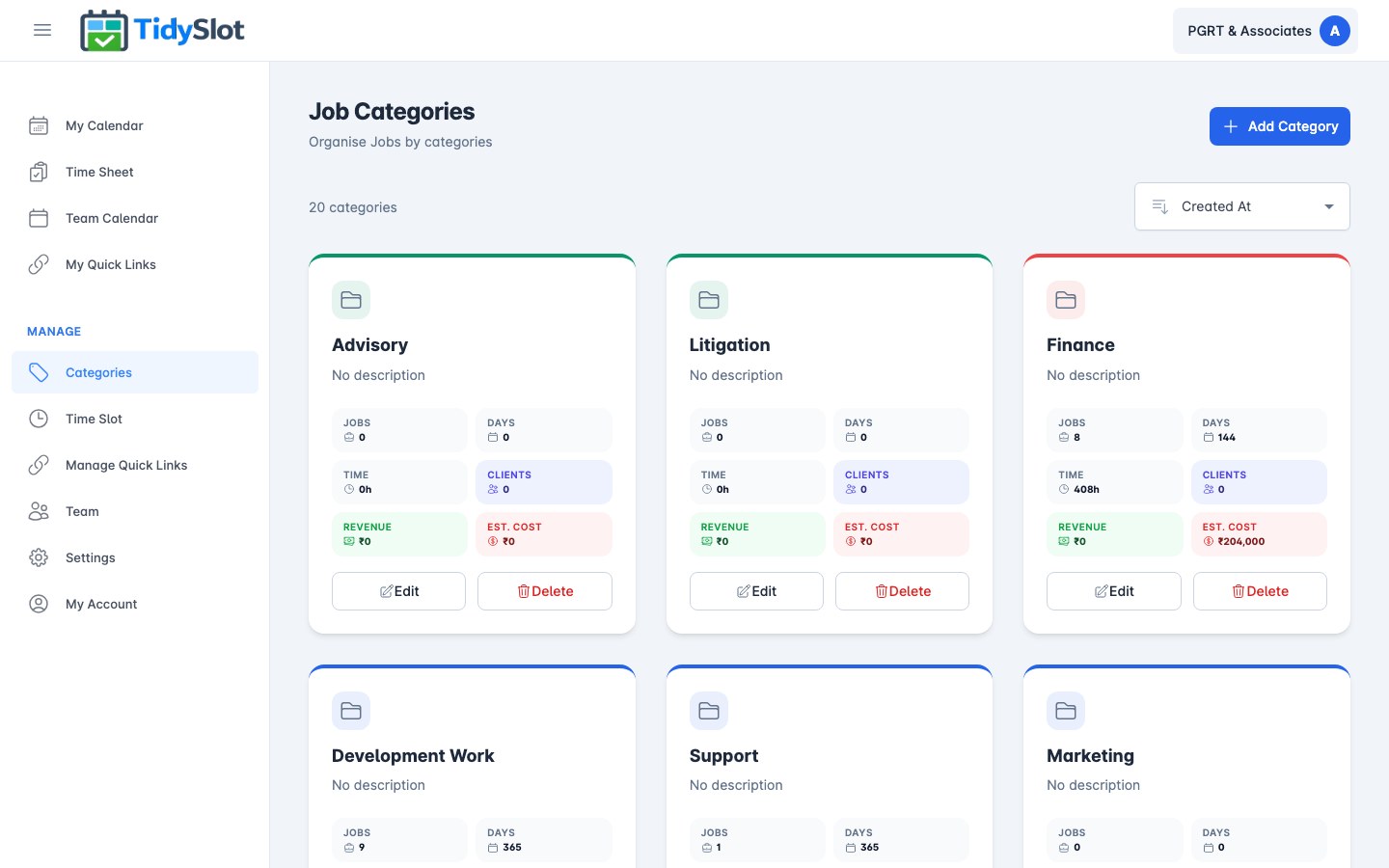
1Go to Categories in the sidebar
Click "Categories" under the Manage section.
-
2Click "Add Category"
A modal opens. Enter a clear, single-concept name for the work type.
-
3Choose a colour and save
Pick a colour from the 10 swatches. This colour will show as a left border on every job card of this type — making job types instantly recognisable in the calendar. Click Save.
-
4Repeat for each work type
Create one category for each distinct type of work your firm does. Aim for 5–10 categories to start.
Step 4 — Create Time Slots
A time slot is a recurring work assignment — it defines the job, links the tool or file your team needs to open, and assigns the job to one or more team members. This is the core of TidySlot.
-
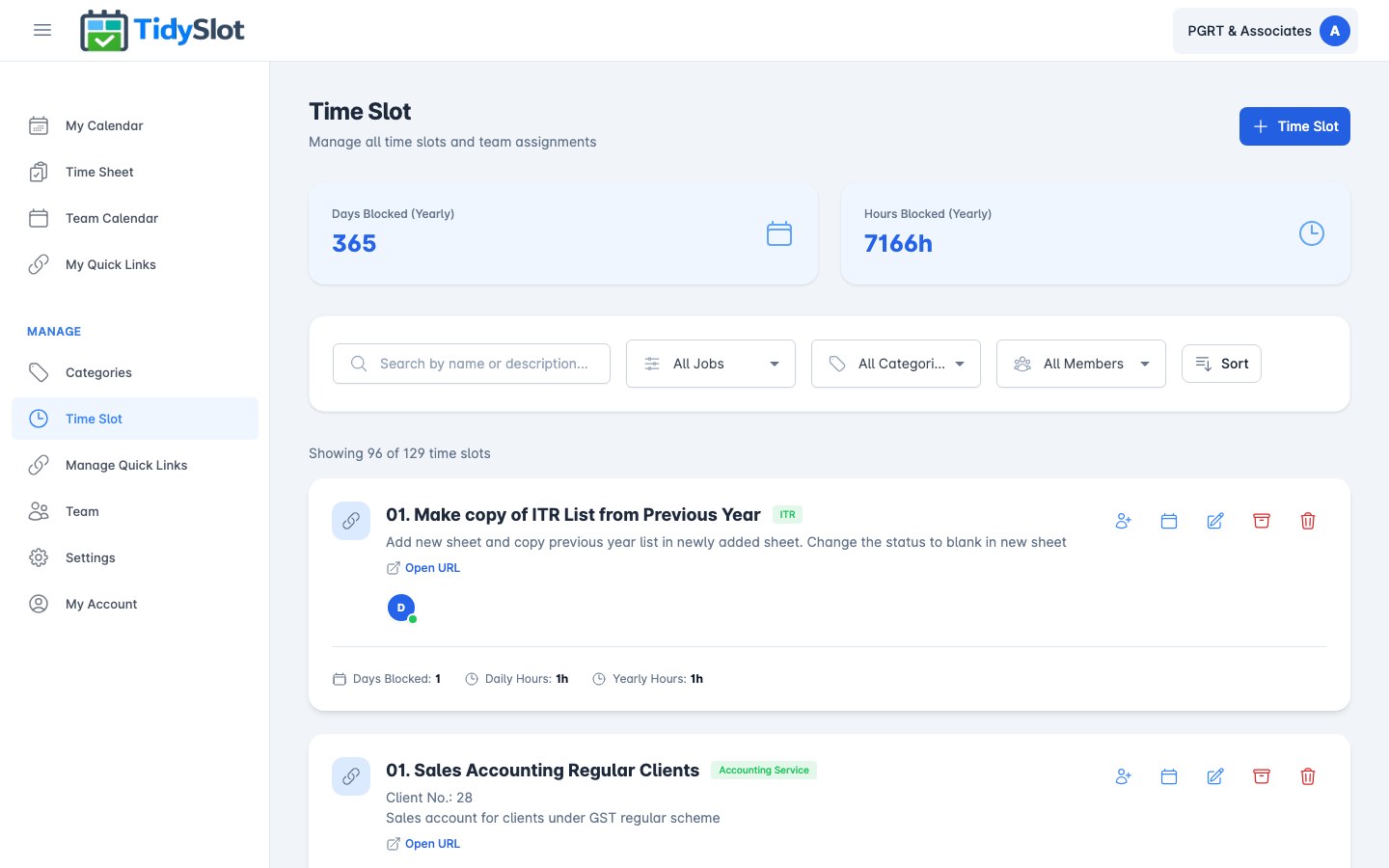
1Go to Time Slot in the sidebar
Click "Time Slot" under the Manage section.
-
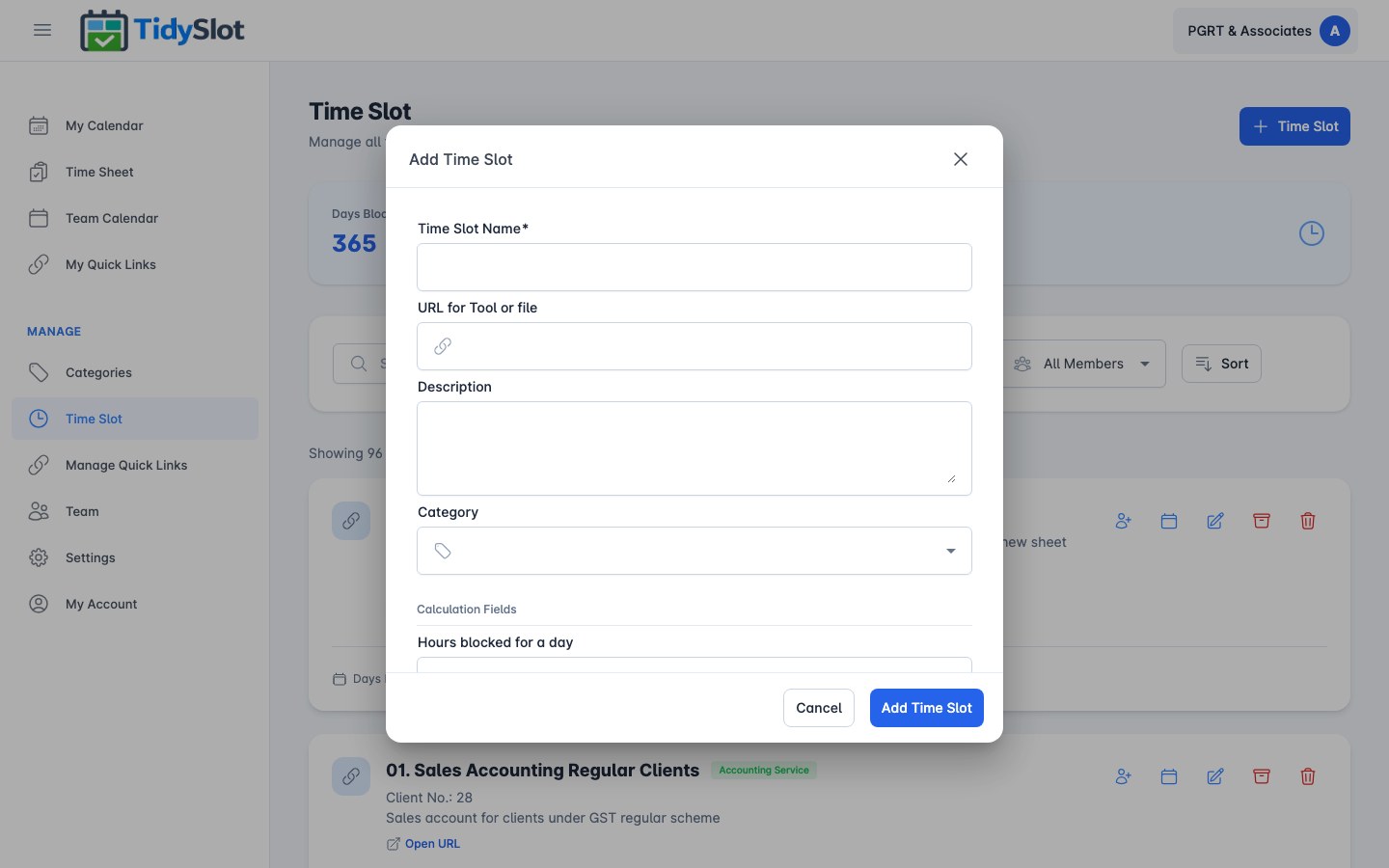
2Click "+ Time Slot"
The Add Time Slot form opens.
-
3Enter the Time Slot Name
Use a clear name your team will recognise — the client name + job type works well. Example: "Mehta Exports — GST Filing" or "Monthly Payroll Run".
-
4Paste the URL (highly recommended)
Paste the direct link to the client's portal, Google Sheet, or the specific file used for this job. This is the link your team will click from their calendar to open the right resource in one click — no asking, no searching.
-
5Add a description and select a category
Write a brief note on what the job involves. Then select the relevant category from the dropdown — this is required.
-
6Set hours per day
Enter how many hours per day this job typically takes. Used for capacity reports and the Hours Blocked summary.
-
7Assign to team members
Select the team member(s) responsible for this job. You can assign the same time slot to multiple team members — each gets their own schedule.
-
8Click "Add Time Slot"
The time slot is saved. Repeat for each recurring job in your firm.
Step 5 — Set Block Days
Block Days sets which specific dates of the month each job appears on a team member's My Calendar. This is the step that makes TidySlot's "set-once" promise real — configure it once and the job appears automatically every month on those dates.
-
1Find the time slot in the list
Locate the time slot you just created. Look at the action icons on the right side of the row.
-
2Click the Calendar icon (Block Days)
A popup appears showing all team members assigned to this time slot.
-
3Click on a team member's name
The Recurring Pattern modal opens for that team member.
-
4Select the dates
Click the date numbers in the grid (1–31) to mark which dates this job appears on that person's calendar each month. For example, click 10, 11, 12, 13, 14, 15 for a GST Filing job that runs from the 10th to 15th each month.
-
5Save and repeat for each team member
Click Save. Repeat for each team member assigned to this time slot. Each person can have different dates for the same job.
Setup Checklist
Use this checklist to confirm setup is complete before sharing TidySlot with your team.
- Organisation Settings configured — financial year, week off days, monthly working hours saved.
- All team members invited — every person who needs access has received their invitation email.
- Categories created — at least 5 work types set up with distinct names and colours.
- Time slots created — all recurring jobs entered with name, URL, category, and team member assignment.
- Block Days set — date patterns configured for every team member on every time slot.
- Verified in My Calendar — log in as a team member (or ask one to log in) and confirm their jobs appear on the correct dates.
Frequently Asked Questions
How long does setup take?
For a firm with 5–8 team members and 20–30 recurring time slots, setup typically takes 20–30 minutes. Larger firms with 10+ staff and 50+ jobs may take 45–60 minutes for the initial setup. Once set up, TidySlot requires minimal ongoing management.
Can I add more time slots after the initial setup?
Yes — add new time slots at any time from Manage → Time Slot. Remember to set Block Days for each new time slot after creating it.
What if a team member doesn't receive their invitation email?
Ask them to check their spam or junk folder. If the email isn't there, go to Team, find their row, and use the resend invitation option. If the problem persists, contact support@tidyslot.com.
What should I do after setup is complete?
Share a quick walkthrough with your team — show them how to log into My Calendar, how to click the job URL to open the right file, and how to punch hours at the end of each job. A 10-minute team session the first morning is enough. From day two, the structure runs itself.
What if I set the wrong dates in Block Days?
You can update Block Days at any time — go back to the time slot, click the Calendar icon, select the team member, and update the date pattern. Changes apply to the current and all future months.